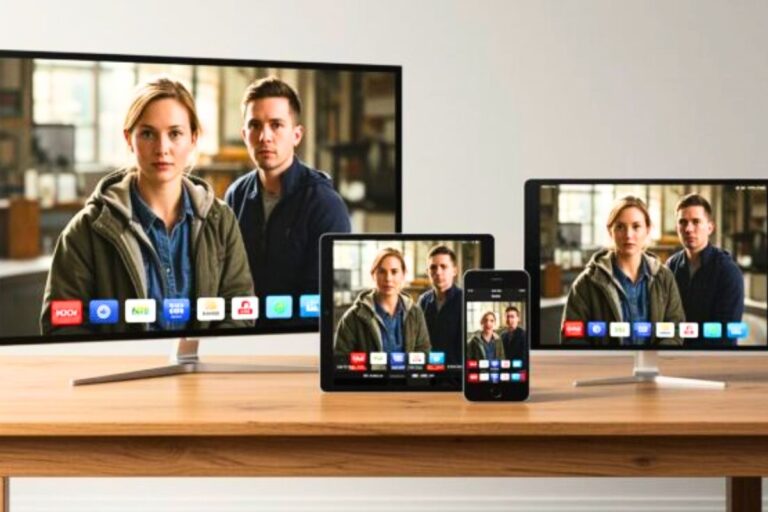
How to Stream on a Non-Smart TV: A Beginner’s Guide
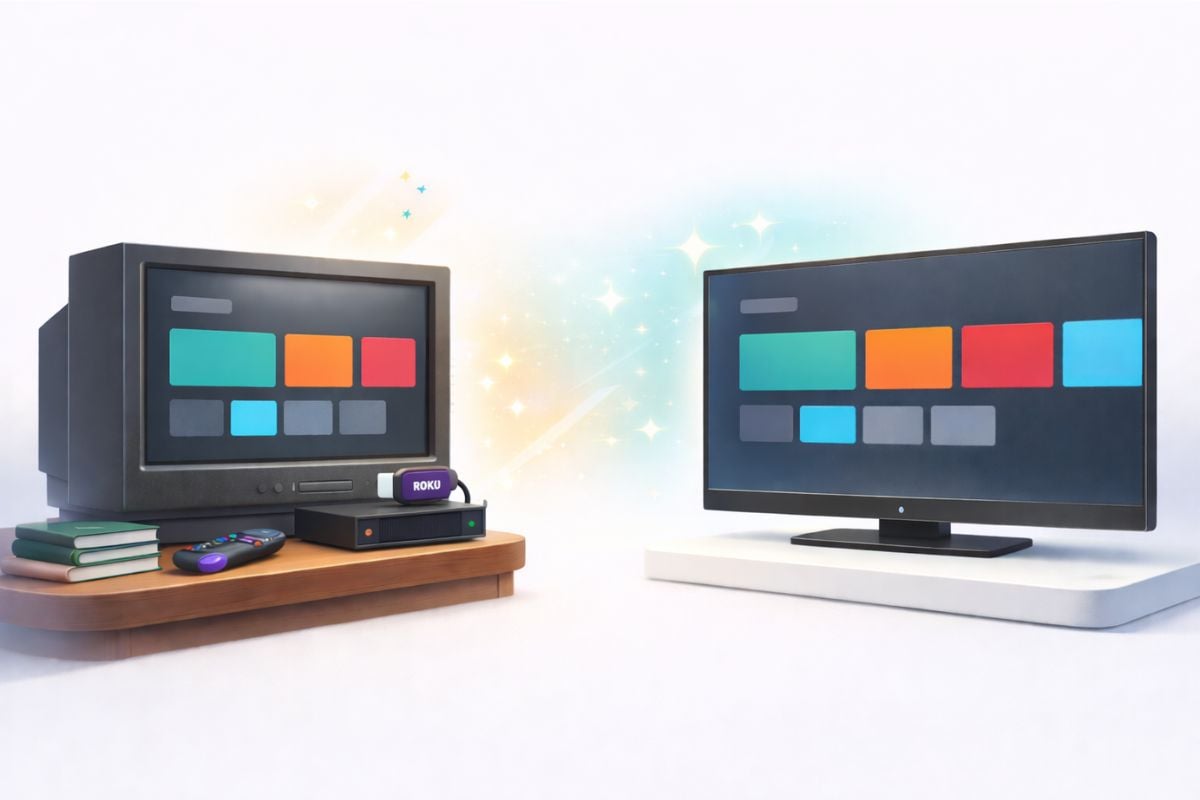
Fast Answer: You can stream on a non-smart TV with a Roku, Fire TV Stick, or another streaming device. Plug it into an HDMI port, connect it to Wi-Fi, and choose the matching HDMI input on your TV.
If your TV has only red, white, and yellow ports, use an HDMI-to-RCA converter. You do not need to buy a new television.
When I set up the non-smart TV in our guest room, I worried about choosing the wrong port. Once I plugged in a Roku and matched the TV input to the HDMI number, it worked. Use the table below to find the right setup for your TV.
What You Need to Stream on a TV – Even Without Cable
Streaming TV is actually very simple. Whether you have a brand-new smart TV or an older television, the basic setup requires just three things.
1. A TV With an HDMI or RCA Input
First, your television needs a way to connect to a streaming device.
Most TVs made in the last 15–20 years have an HDMI port, which is the easiest way to connect modern streaming devices.
If your television is older and only has the red, white, and yellow RCA inputs, you can still stream by using a small HDMI-to-RCA converter. This allows a streaming device to work with older televisions that were made before HDMI became common.
2. A Streaming Device
The easiest way to stream on an older TV is by using a streaming device for TV, such as:
- Roku
- Amazon Fire TV Stick
- Chromecast
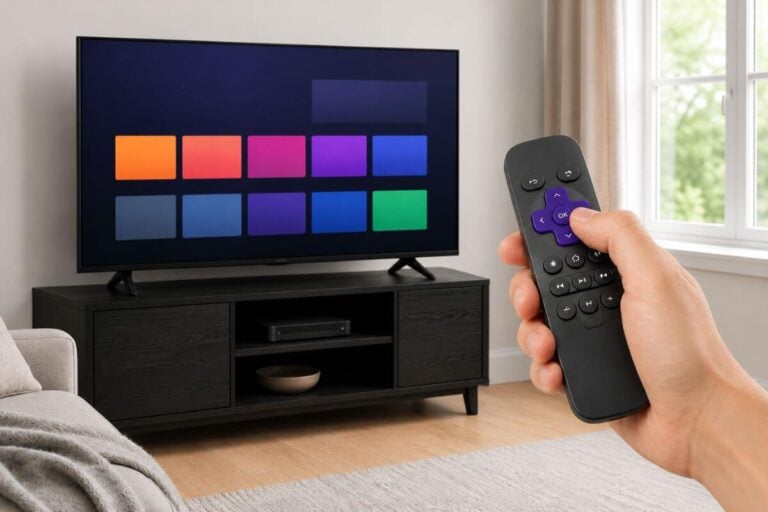
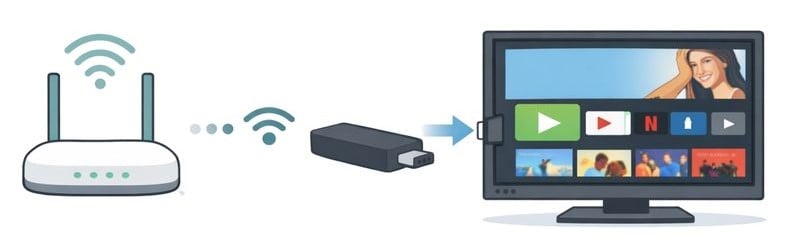
These small devices plug into the HDMI port on your TV and give you access to streaming apps like YouTube, Netflix, Pluto TV, and many free streaming services. In effect, they turn a regular TV into a smart TV.
If you’re new to streaming devices, see my step-by-step guide for setting up a Roku streaming stick on your TV.
Fire TV users can follow my guide to setting up a Fire Stick. If you choose a Firestick and the remote stops working, the fix is usually to reset the Firestick remote and reconnect it.
3. An Internet Connection
Streaming TV requires internet access. Most streaming devices connect through home Wi-Fi, which allows you to watch shows, movies, and live channels online instead of through cable.
Once you have these three things — a TV input, a streaming device or smart TV apps, and internet — you can stream TV without cable and watch thousands of programs on demand.
What You Need to Stream on a Non-Smart TV
| Your TV Setup | What You Need | What to Do |
|---|---|---|
| One open HDMI port | Roku, Fire TV Stick, or another streaming device | Plug the device into HDMI. Connect its power cord to a wall outlet. Select the matching HDMI input on your TV. |
| All HDMI ports are being used | Streaming device and an HDMI switch | Connect your devices to the switch. Connect the switch to one TV port. Use the switch remote to choose a device. |
| Only red, white, and yellow ports | Streaming device and an HDMI-to-RCA converter | Plug the streaming device into the converter. Match the colored cables to the TV. Set the TV input to AV or Video. |
| Old smart TV with apps that no longer work | Roku, Fire TV Stick, or another current streaming device | Plug the device into HDMI and use its menu instead of the TV’s old built-in apps. |
| No home Wi-Fi | A mobile hotspot may work | Connect the streaming device to your hotspot. Check your phone plan because streaming can use a lot of data. |
Once you choose a device, follow my step-by-step Roku Stick setup guide or my Fire TV Stick setup guide.
Is Wi-Fi Enough for Streaming?
For most households, Wi-Fi works perfectly well for streaming.
However, some streaming devices also include an Ethernet port, which allows you to connect directly to your router with a cable.
Ethernet may help if:
• your Wi-Fi signal is weak
• the TV is far from the router
• streaming buffers frequently
What If Your Smart TV Is Too Old or Intimidating?
You might actually own an older “smart” TV but find yourself reading this guide anyway. If your television is more than 5 years old, the manufacturer may have stopped updating the apps. If apps like Tubi or Pluto TV constantly freeze, your smart TV is effectively acting like a non-smart TV.
You don’t need a new television. You can bypass those old menus completely by plugging a simple $30 Roku or Fire TV Stick into the back of it and using that remote instead.
Where to Plug in a Streaming Device (HDMI Explained)
Most streaming devices connect to your television using an HDMI port. HDMI is the standard connection used by modern TVs to carry video and audio through one cable.
On many televisions, the HDMI ports are located on the back or side panel of the TV. They are usually labeled HDMI 1, HDMI 2, or HDMI ARC.
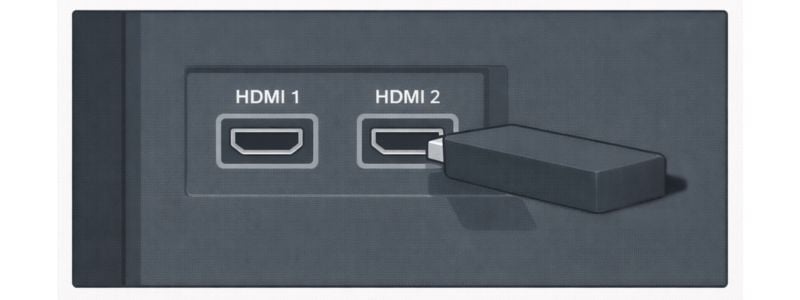
To connect a streaming device:
- Locate an open HDMI port on your TV
- Plug the streaming device into the HDMI port
- Turn on the TV
- Use your remote to switch the TV to the correct HDMI input
Once the correct input is selected, the streaming device’s setup screen should appear on your TV.
If you look at the back of your television and don’t see an HDMI port, don’t worry. Many older TVs can still stream using a small converter. The next section explains how that works.
What to Do If Your TV Has No HDMI Port
If you look at the back of your television and don’t see an HDMI port, your TV is likely an older model that uses RCA inputs instead.
These are the three round connectors colored:
- Yellow – video
- Red – right audio
- White – left audio
The good news is that you can still stream on this type of television. You simply need a small HDMI-to-RCA converter.
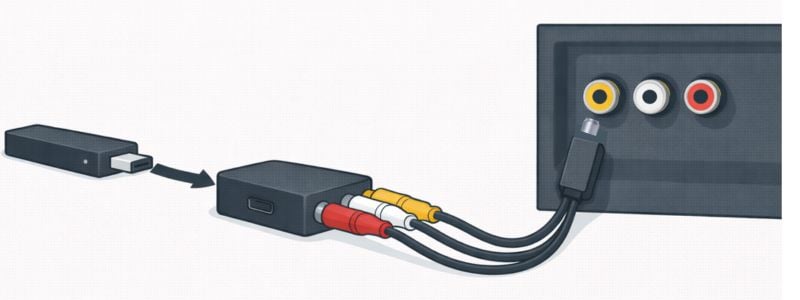
How the setup works
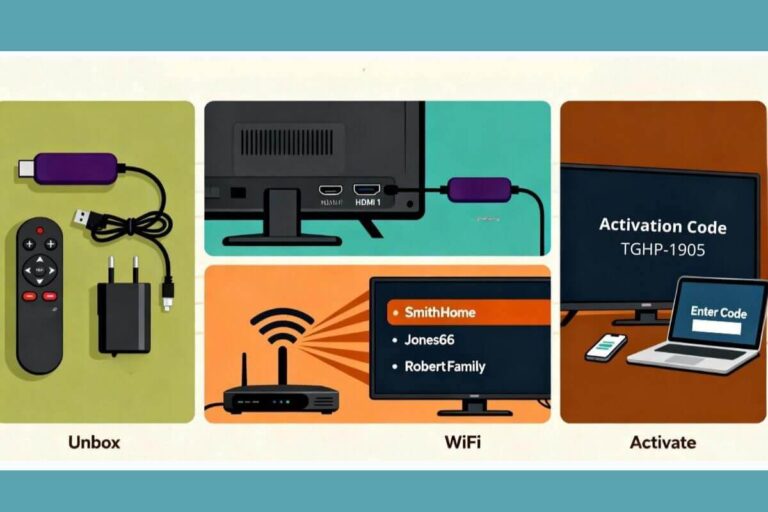
- Plug your streaming device (such as a Roku or Fire TV Stick) into the HDMI port on the converter
- Connect the RCA cables (red, white, yellow) from the converter to the matching ports on the TV
- Switch the TV input to AV or Video
The converter changes the digital HDMI signal into the analog signal that older TVs use.
Once connected, your TV will display the streaming device’s setup screen just like a newer television.
This means that even a very old television can still stream movies, YouTube, and free channels.
For example, if you want to watch free shows online, many people use streaming apps like YouTube to find classic television episodes. I explain how that works in my guide to watching YouTube on an older TV without a smart TV.
What If All My HDMI Ports Are Being Used?
If your cable box, DVD player, or another device is already using your TV’s HDMI ports, you do not need to keep unplugging cords.
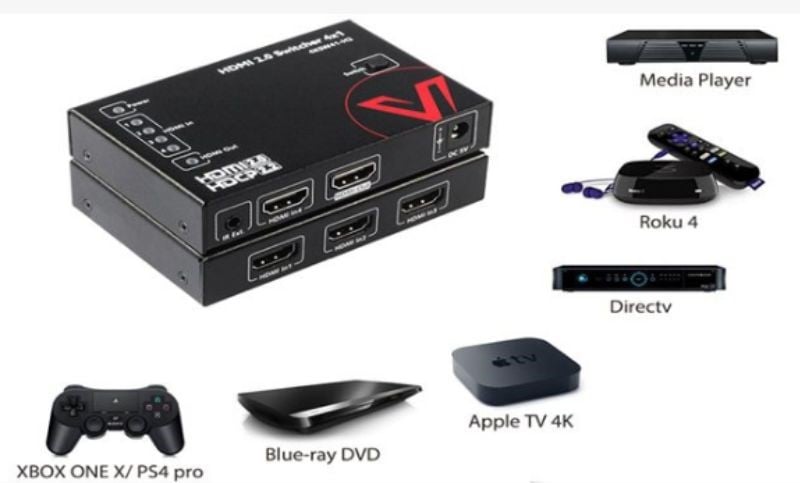
An HDMI switch lets you connect several devices to one HDMI port. Plug your devices into the switch, connect the switch to the TV, and use the included remote to choose which device you want to watch.
Affiliate Disclosure: This page contains affiliate links. If you buy through them, I may earn a small commission at no extra cost to you.
If you are tired of unplugging cords, check the product details to see if this switch fits your TV setup.
How to Connect Your Streaming Device to Wi-Fi
Once your streaming device is plugged into the TV, the next step is connecting it to your home Wi-Fi network.
First make sure the TV is set to the same HDMI input where the streaming device is plugged in.
For example, if your streaming device is plugged into HDMI 2, switch your TV input to HDMI 2.
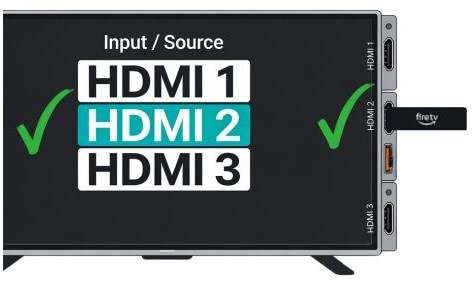
Select the same HDMI input on your TV that the streaming device is plugged into before connecting the device to Wi-Fi.
From there, the device will guide you through connecting to Wi-Fi.
Typical setup steps look like this:
- Turn on the TV and switch to the HDMI input where the streaming device is plugged in
- The streaming device setup screen will appear
- Select your Wi-Fi network from the list
- Enter your Wi-Fi password using the streaming device remote
Once connected, the streaming device can load apps and start streaming shows.
In other words, the TV displays the picture through HDMI, and the streaming device connects to the internet through Wi-Fi.
If you’re exploring ways to replace cable entirely, many people combine streaming with free broadcast channels. I explain how that works in my guide to getting free local channels without cable.
What Internet Speed Do You Need for Streaming?
Most streaming services require only moderate internet speeds.
Typical streaming speeds:
- Standard definition (SD): 3–5 Mbps
- High definition (HD): 5–10 Mbps
- 4K streaming: 25 Mbps or higher
If your internet speed is slower than this, you can still stream by:
• watching on one TV at a time
• lowering the video quality in the streaming app
• avoiding 4K streaming
How to Watch Local Channels Without Cable
Streaming apps do not usually give you all local broadcast channels for free. If you want ABC, CBS, NBC, FOX, PBS, local news, or weather, you may also need a TV antenna.
Many people use both: a streaming device for apps like YouTube, Tubi, and Pluto TV, plus an antenna for free local channels.
If you want local stations, see my guide to setting up an indoor antenna and my guide to what channels you can get with an antenna.
To watch local channels:
- Connect a TV antenna to the coax port on your television
- Open your TV settings and run a channel scan
- The TV will automatically find the available local stations
Many people combine an antenna with streaming so they can watch both free broadcast channels and streaming apps on the same TV.
Local TV stations are broadcast free over the air. The Federal Communications Commission explains how over-the-air television works and why antennas can receive these signals for free.
If you have an older television and are unsure whether you need extra equipment, see my guide explaining whether older TVs need a converter box for antennas.
How to Cast From Your Phone to an Older TV
You can also cast from your phone to an older TV if you have a Roku, Fire TV Stick, or Chromecast connected. Your phone sends the video to the streaming device, and the TV plays it on the screen.
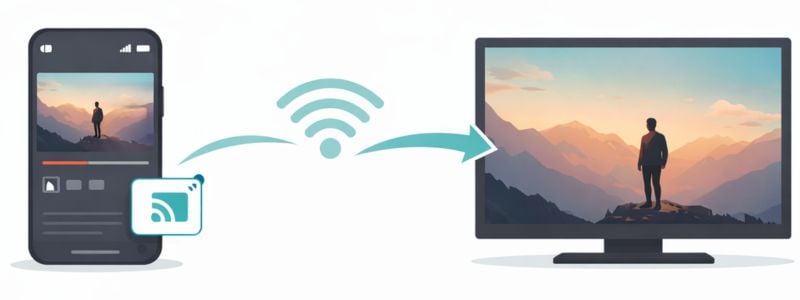
This is useful for YouTube videos or quick viewing, but a streaming device remote is usually easier for everyday watching.
For exact steps, see my guide on how to cast from your phone to your TV.
Common Streaming Problems
Even when everything is connected correctly, streaming sometimes doesn’t work the first time. Most issues are simple setup problems that can be fixed in a few minutes.
Some of the most common streaming problems include:
- The TV says “No Signal” after plugging in the streaming device
- The streaming device screen does not appear
- The TV is on the wrong HDMI input
- Wi-Fi is not connected
- Apps will not load
In most cases, the issue is simply that the TV input does not match the HDMI port where the streaming device is plugged in.
For example, if the streaming device is connected to HDMI 2, you must select HDMI 2 using the TV remote.
Once the correct input is selected and the device is connected to Wi-Fi, streaming apps should load normally.
Streaming vs Cable TV: What’s the Difference?
Cable TV comes through a cable line and usually requires a monthly package. Streaming comes through your internet connection and uses apps instead.
With streaming, you open apps like YouTube, Tubi, Pluto TV, Netflix, or Prime Video. You can use free apps, paid apps, or a mix of both.
Free Streaming Apps You Can Try
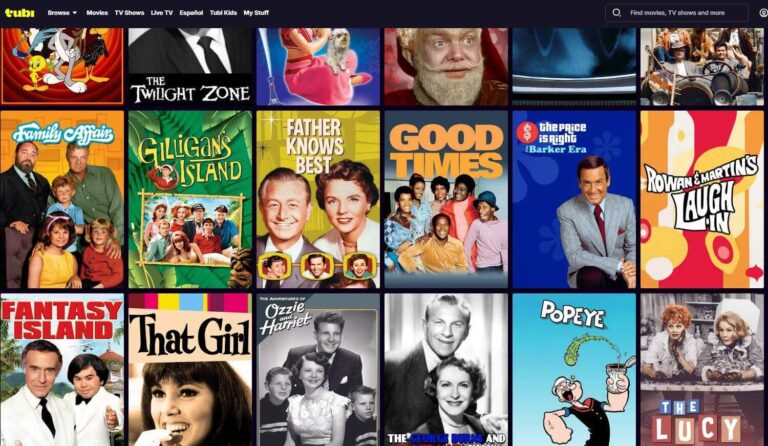
Good free streaming apps to try first include YouTube, Tubi, Pluto TV, and Freevee.
If you want to start with Tubi, see how to get Tubi on Roku, Fire TV, or a smart TV.
These apps are available on most Roku, Fire TV, and Chromecast devices. For classic shows, start with my guide to watching classic TV shows free.
Troubleshooting Streaming Setup
If your streaming setup still isn’t working, a few quick checks usually solve the problem.
Check the HDMI input
Make sure the TV input matches the HDMI port where the streaming device is plugged in.
Example:
If the device is plugged into HDMI 3, switch the TV input to HDMI 3.
Restart the streaming device
Unplug the streaming device from power, wait about 10 seconds, then plug it back in.
Check your Wi-Fi connection
Streaming devices require an internet connection.
If apps won’t load:
- Restart your Wi-Fi router
- Move the router closer to the TV
- Reconnect the streaming device to Wi-Fi
Try another HDMI port
If the screen remains blank, plug the streaming device into another HDMI port on the TV.
Frequently Asked Questions
Can you stream on a TV that is not a smart TV?
Yes. A non-smart TV can stream content by using a streaming device such as a Roku, Fire TV Stick, or Chromecast. These devices plug into the HDMI port on the TV and provide access to streaming apps like YouTube, Netflix, and Pluto TV.
If the TV does not have an HDMI port, you can usually connect a streaming device using a small HDMI-to-RCA converter.
2. What do you need to stream on a non-smart TV?
To stream on a non-smart TV, you typically need three things:
– A TV with an HDMI or RCA input
– A streaming device such as Roku or Fire TV Stick
– A Wi-Fi internet connection
Once the device is connected and set up, you can watch streaming apps directly on your television.
3. Can you watch YouTube on an older TV?
Yes. You can watch YouTube on an older TV by using a streaming device or by casting videos from your phone to the TV.
Most streaming devices include a built-in YouTube app that lets you search and play videos directly on the television screen.
4. Can you stream TV without cable?
Yes. Streaming allows you to watch movies, TV shows, and live channels through internet apps instead of a cable subscription. Many people combine streaming services with a TV antenna for free local channels, which provides news, sports, and major broadcast networks without paying for cable.
Can You Stream Without Home Internet?
Streaming normally requires an internet connection.
Some people use a mobile hotspot from their phone, but this often uses large amounts of data and can be slower than home internet.
For most households, a home Wi-Fi connection is the easiest way to stream TV.
Wrap Up
Streaming on a non-smart TV usually comes down to one simple setup: Plug in a Roku, Fire TV Stick, or Chromecast, switch the TV to the correct input, connect the device to Wi-Fi, and open the apps you want to watch.
If your TV has HDMI, setup is usually simple. If it only has red, white, and yellow RCA inputs, you can still stream by using an HDMI-to-RCA converter.
Start with one device, one TV input, and one app like YouTube or Tubi. Once that works, you can add more apps or combine streaming with an antenna for free local channels.