Roku Remote Is Not Working? Easy Fixes to Try First
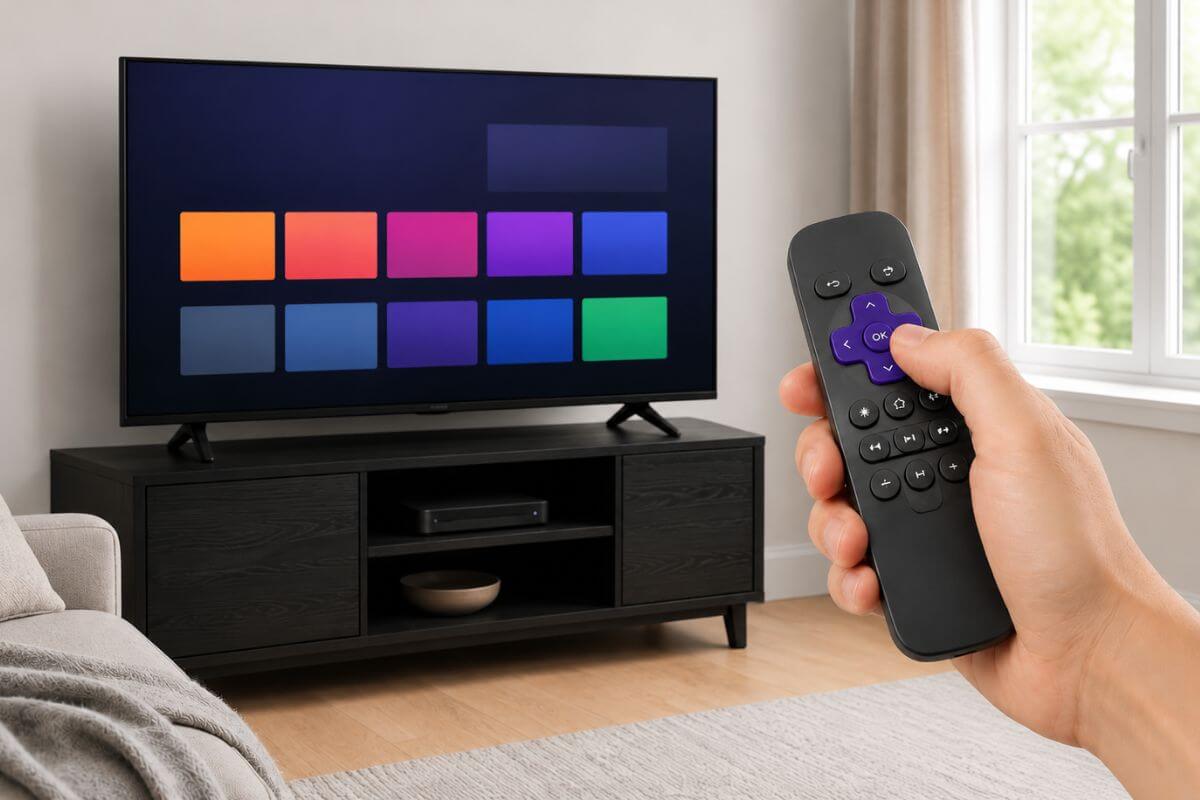
If your Roku remote is not working, the problem is usually one of five things: Weak batteries, a blocked signal, a remote that needs to pair again, a TV-volume setup issue, or a Roku app/Wi-Fi problem.
Start with the quick checks below. Then use the troubleshooting sections to jump to the problem that matches what your remote is doing before you buy a replacement.
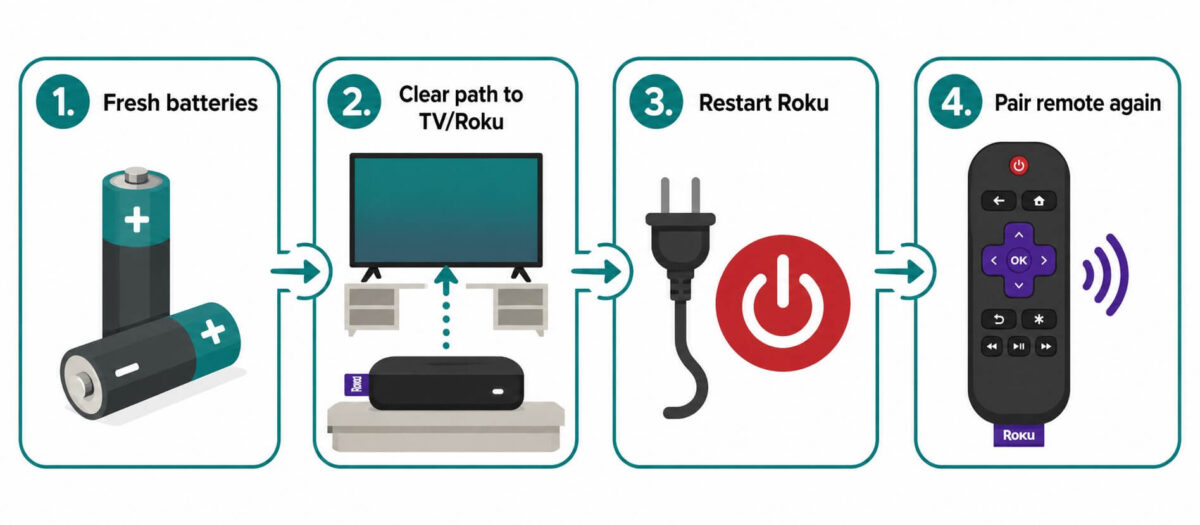
Fast Fix: Try These 7 Steps First
Try these in order:
- Put in fresh batteries, or charge your remote if it is rechargeable.
- Move closer to the Roku or TV.
- Move anything blocking the Roku device.
- Restart the Roku by unplugging it for about 10 seconds.
- Try the remote again.
- Use the Roku app on your phone if you need control right now.
- Pair or reset the remote if it still does not work.
If the remote worked before and stopped suddenly, this quick routine is the best place to start.
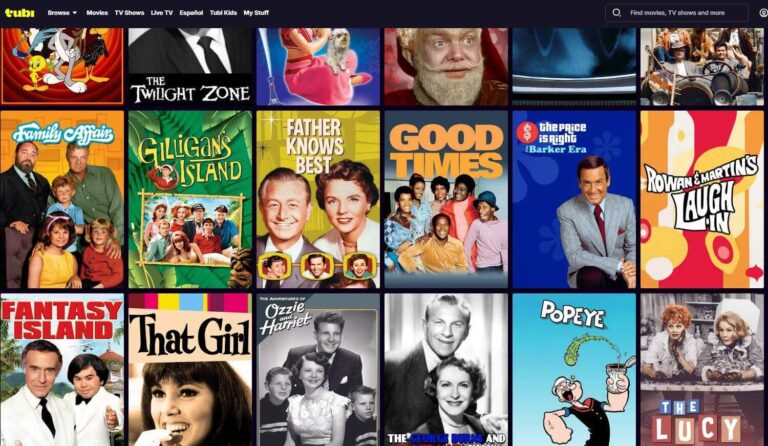
Once your remote is working again, you can use Roku to watch plenty of free shows, including the options in my guide to watching old TV shows for free.
Roku Remote Stopped Working? Pick the Problem That Matches
Before you keep trying random fixes, choose the problem that sounds closest to yours:
- Need control right now? Go to Use the Roku App as a Temporary Remote.
- Remote will not pair? Go to How to Pair a Roku Remote Again.
- Remote seems stuck? Go to How to Reset a Roku Remote.
- Volume buttons are not working? Go to Roku Remote Volume Not Working? Try This.
- Green light keeps blinking? Go to Roku Remote Blinking Green Light? What It Means.
- Remote still will not connect? Go to Roku Remote Won’t Connect or Pair.
- Nothing works after all the fixes? Go to When to Replace Your Roku Remote.
1. Use the Roku App as a Temporary Remote
If the remote is dead and you need control right now, use the Roku mobile app.
The Roku app can turn your phone into a remote if your phone and Roku are on the same Wi-Fi network.
Basic steps:
- Go to your app store on an iPhone or the Play Store on Android and search for Roku.
- Open the Roku app on your phone.
- Tap Devices.
- Choose your Roku.
- Tap Remote.
- Use the phone screen like a remote.
???? If the app does not find your Roku, check that your phone is on the same Wi-Fi network as the Roku.
2. How to Pair a Roku Remote Again
If your Roku remote is not working, pairing may be the problem. Pairing means the remote and Roku “find” each other.
There are two common types of Roku remotes:
- Simple Roku remote: usually needs a clear path to the TV or Roku.
- Roku voice remote: pairs wirelessly and may have a voice button.
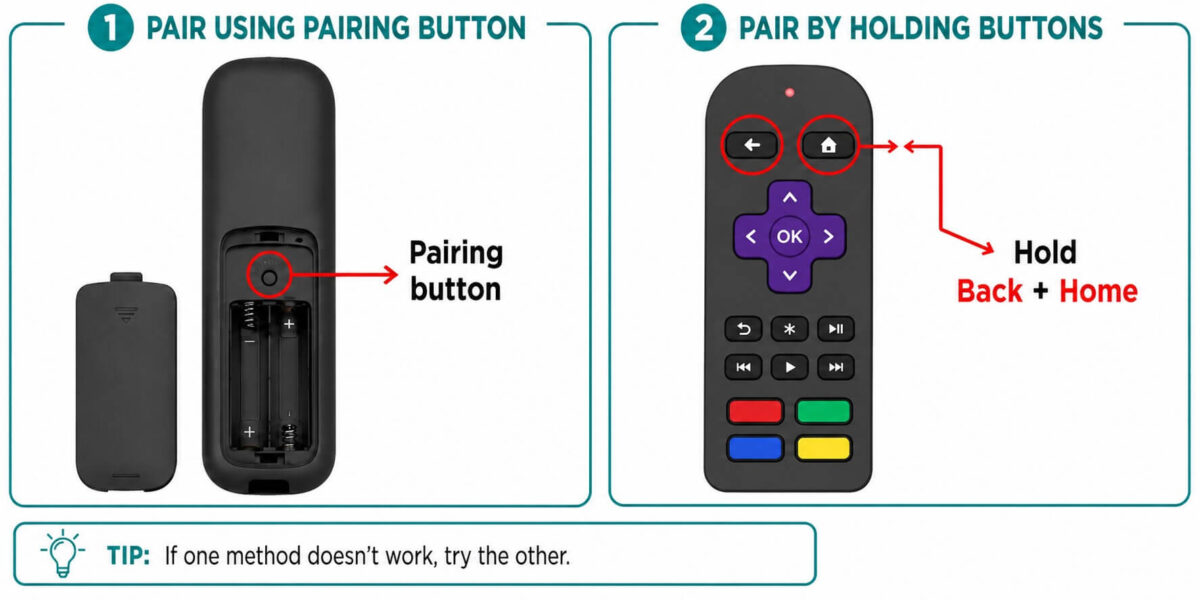
If your remote has a small pairing button, it is usually inside the battery area or on the back.
If your remote has a pairing button
Try this:
- Restart your Roku.
- Wait until the Roku home screen appears.
- Open the remote battery cover.
- Press and hold the pairing button for about 5 seconds.
- Wait for the light on the remote to flash.
- Follow the screen prompts.
If your remote does not have a pairing button
Some Roku voice remotes use buttons instead.
Try this:
- Restart your Roku.
- Hold the Back button and Home button together for about 5 seconds.
- Watch for the remote light to flash.
- Wait for the Roku to pair.
If the remote still does not pair, move closer to the Roku and try again.
These steps are for Roku voice remotes only. A simple Roku remote does not need pairing.
3. How to Reset a Roku Remote
A Roku remote control reset can help when the remote seems stuck.
Try this simple reset:
- Remove the batteries from the remote.
- Unplug the Roku power cord.
- Wait about 10 seconds.
- Plug the Roku back in.
- Wait for the home screen.
- Put the batteries back in.
- Pair the remote again if needed.
This does not erase your Roku account or apps. It is just a simple restart and reconnect.
If you are still learning how Roku compares with other streaming devices, this guide explains how Roku and Firestick are different in plain English.
4. Roku Remote Volume Not Working? Try This
If your Roku remote works for menus but the volume buttons do not change the sound, the remote may have lost its TV-control setup.
This usually happens with a Roku Stick or Roku box. The Roku remote can move around the Roku menus, but the volume buttons control the TV itself.
Try this:
- Make sure the TV is not muted.
- Try the TV’s original remote to confirm the TV volume still works.
- Restart the Roku and the TV.
- On the Roku home screen, go to Settings.
- Choose Remotes & devices.
- Choose Remotes.
- Select your Roku remote.
- Look for Set up remote for TV control.
- Follow the screen steps.
After you run the TV-control setup, test the volume again.
When the volume used to work, this setup step often fixes it. When the volume has never worked, the remote may not support TV volume control, or it may not be matched correctly to your TV.
For a Roku TV, the volume buttons should control the TV sound directly. Restart the TV and replace the remote batteries before trying anything more complicated.
Still hearing muffled voices even after the volume works? A soundbar made for clearer dialogue may help you hear voices without turning the TV way up.
5. Roku Remote Blinking Green Light? What It Means
A blinking green light usually means the Roku remote is trying to pair. That is not always bad.
Follow these steps:
- Move close to the Roku.
- Wait a minute.
- If it does not pair, restart the Roku.
- Press the pairing button again.
- Wait for the light to flash.
- Follow the screen.
If the green light keeps blinking and nothing happens, change the batteries and try again.
6. Roku Remote Won’t Connect or Pair
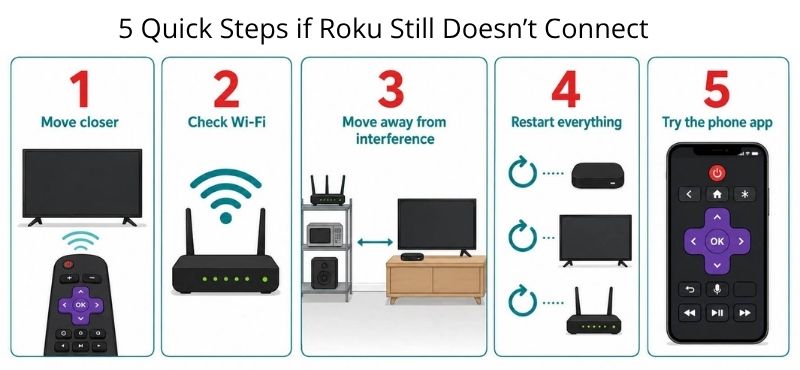
If your Roku remote won’t connect, work through this list.
Check distance
Stand closer to the Roku.
Check Wi-Fi
Some Roku remotes and the Roku app need Wi-Fi to work well.
Check for interference
Move the Roku away from:
- thick TV cabinets
- metal shelves
- routers
- other electronics
Restart everything
Restart:
- the Roku
- your TV
- your router, if the Roku app is not connecting
Try the Roku app on your smartphone
If the remote still will not connect, use the Roku app on your phone so you can get into settings.
If you are trying to use Roku with an older TV, this guide explains how to stream on a non-smart TV without replacing the television.
7. When to Replace Your Roku Remote
You may need a new Roku remote if:
- it does not work with fresh batteries
- it will not pair after several tries
- the buttons are stuck
- the battery area is damaged
- the remote was dropped in water
- only some buttons work
???? Before you buy a new remote, check which Roku device you have. Not every Roku remote works with every Roku model.
Frequently Asked Questions
Why is my Roku remote not working even with new batteries?
The remote may need to be paired again. Restart the Roku, then press the pairing button or hold Back and Home if your remote does not have a pairing button. These steps are for Roku voice remotes only. A simple Roku remote does not need pairing.
Can I use my phone if my Roku remote stops working?
Yes. The Roku mobile app can work as a remote if your phone and Roku are on the same Wi-Fi network.
Why is my Roku remote blinking green?
A blinking green light usually means the remote is trying to pair. Wait a moment. If it does not connect, restart the Roku and try pairing again.
Why does my Roku remote work but the volume does not?
The remote may not be set up to control your TV volume. Some Roku remotes have TV volume controls, and some do not.
What is the difference between a simple Roku remote and a Roku voice remote?
A simple Roku remote usually uses infrared, so it needs a clear path to the Roku device or TV. If something blocks the signal, the remote may not work.
A Roku voice remote pairs wirelessly with the Roku. It may have a microphone button, voice search, a pairing button, and TV power or volume buttons.
For a simple remote, check batteries and line of sight first. For a voice remote, try pairing it again.
Wrap Up
A Roku remote that stops working does not always need to be replaced.
Work through the fixes in order: Batteries, distance, restart, app control, pairing, reset, and TV-volume setup. That order saves time because it rules out the easy problems before you spend money.
If the remote still will not connect after those steps, or the buttons are damaged, then replacement may make sense. Just check your Roku model first so you buy a remote that actually works with your device.
Once your remote is working again, you can use it to install free streaming apps like Tubi. This guide shows how to install Tubi on Roku, Firestick, and smart TVs.