Watch Internet Archive on TV (Roku, Fire Stick & Smart TV)
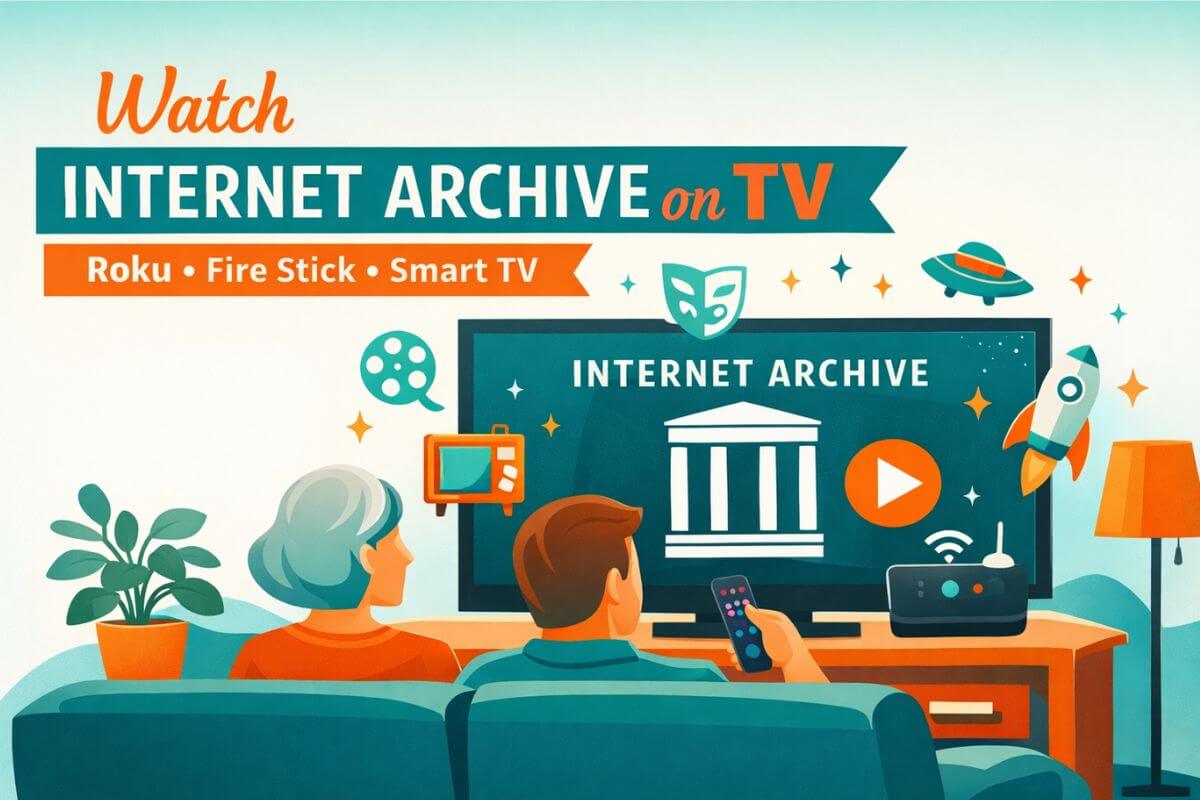
You can watch Internet Archive shows directly on your TV using a streaming device, screen mirroring, or a simple HDMI connection. The fastest method is using a Roku or Fire TV device, which lets you access the Internet Archive through a browser or casting.
If you’re not technical, don’t worry—there are a few simple ways to get it on your TV in minutes.
In this guide, I’ll show you the easiest ways to get Internet Archive videos onto your TV using a Roku, Fire Stick, smart TV, or by casting from your phone. Simple steps, helpful pictures, no tech talk.
If you’re not sure whether Roku or Fire Stick will be easier in your home, I break down the differences in plain English in this Roku vs Fire Stick comparison guide.
New to the Internet Archive? Start with my guide on finding vintage shows on this digital treasure trove to learn how to search, browse, and save your favorites.
What’s the Easiest Way to Watch Internet Archive on TV?
Quick Answer: Choose Your Method (Jump to the steps)
Pick the method that fits what you have. Each link jumps to the full steps below:
- Fire Stick Browser (Silk) — best if you have a Fire Stick and want the easiest no-phone setup.
- Cast or Mirror from Your Phone — best for Roku, many smart TVs, Chromecast/Google TV, and Apple TV/AirPlay TVs.
- HDMI from a Laptop — most reliable (works with any TV that has an HDMI port).
- Download + USB — best if your internet is slow or you want to save videos.
???? There isn’t an official Internet Archive app for Roku/Fire TV, so these workarounds are the simplest ways to watch on a big screen.
???? If you want the full, step-by-step version of casting and mirroring (all devices), this walkthrough makes it much easier.
Method 1: Use the Silk Browser on Fire Stick (Easiest)
If you have an Amazon Fire TV Stick, this is the simplest way. The Fire Stick has a web browser called Silk Browser. You can use it just like a browser on a computer.
What You Need
- An Amazon Fire TV Stick (any model)
- The Fire Stick remote
- Wi-Fi
Step 1: Open the Silk Browser
- Turn on your TV and your Fire Stick.
- On the Fire Stick Home Screen, move right and choose Apps.
- Look for an app called Internet (often labeled simply “Internet” with a blue smile icon on newer Fire TV menus).
- If you don’t see it:
- Go to Search (the magnifying glass icon).
- Type Silk Browser using the on-screen keyboard.
- Select the Silk Browser app.
- Choose Download (if needed), then Open.
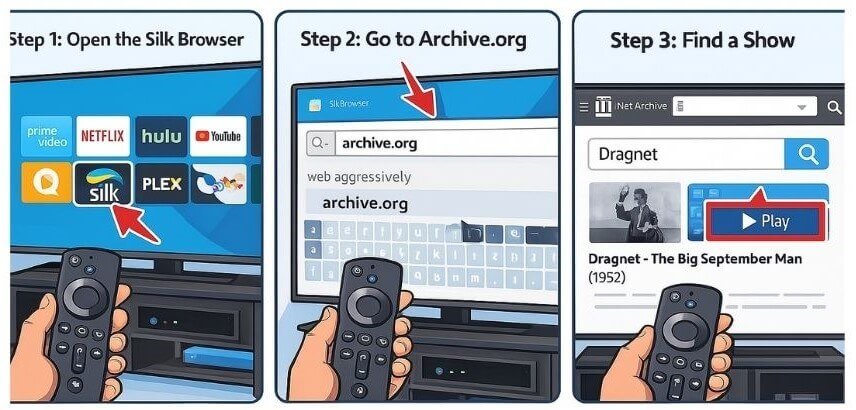
Step 2: Go to Archive.org
- With Silk Browser open, move up to the address bar at the top of the screen.
- Use the remote to type archive.org.
- Press the center button on the remote to go to the website.
Step 3: Find a Show
- On the Internet Archive page, find the search box.
- Use the remote to type the name of a show, like Dragnet or What’s My Line.
- Press Search.
- Move to a video you want to watch and press the center button to open it.
- Move to the Play button and press the center button to start the video.
Tip: Use the round pad on your remote to move:
- Up, down, left, right to move around the screen
- The center button to “click” on things
If dialogue sounds muffled on older recordings, these free TV sound tweaks can make voices noticeably clearer.
Method 2: Cast or Mirror from Your Phone
If you don’t like typing on your TV, you can use your phone instead.
First, you find the video on your Android phone.
Then you send your phone screen to the TV.
This is called screen mirroring or casting.
It works with:
- Many smart TVs
- Roku
- Fire Stick
- Chromecast
Option A: Screen Mirror from Android to Roku (Stick or Roku TV)
What You Need
- An Android phone
- Roku device or Roku TV
- Both the Android phone and Roku on the same Wi-Fi network
Step 1: Get the video ready on your phone
- Open Chrome.
- Go to archive.org.
- Find your show and open the video page.
- Leave it ready.
Step 2: Turn on Screen Mirroring on Roku (one-time)
- Press Home on your Roku remote.
- Go to Settings.
- Choose System.
- Choose Screen mirroring.
- Choose Screen mirroring mode.
- Pick Prompt or Always allow.
You usually do this only once.
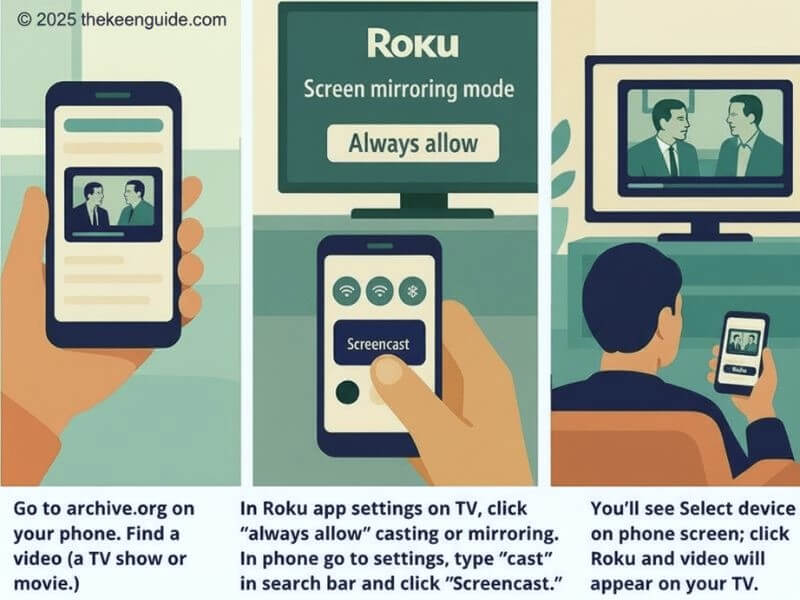
Step 3: Turn on Screen Cast on your Android
- Swipe down from the top of your phone.
- This opens the quick settings panel.
- Look for one of these:
- Screen Cast, Cast, Smart View, Screen Mirror
- Note: Many Google Pixel phones can’t screen-mirror directly to Roku because they don’t support Miracast. If you have a Pixel, the easiest options are a Chromecast/Google TV device or an HDMI adapter.
- Tap it.
- Tap your Roku name.
If your TV asks, choose Allow.
Step 4: Play the Internet Archive Video
- Go back to the video page on your phone.
- Tap Play.
- Your phone is now your remote.
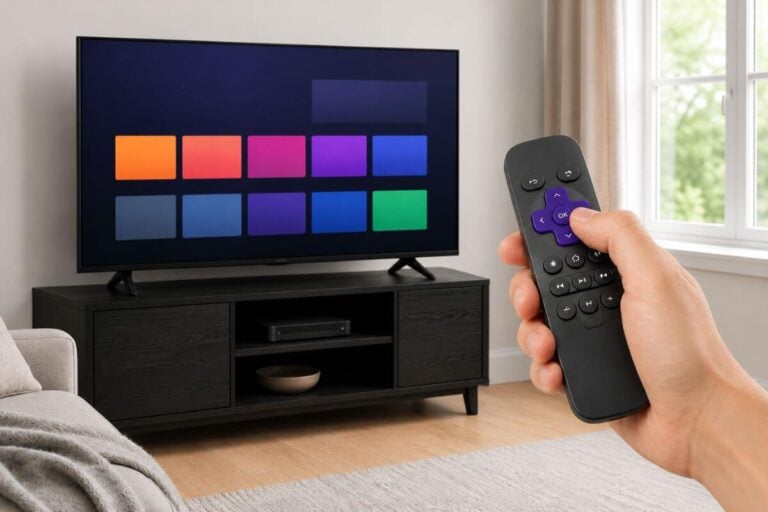
If you’re setting up a Roku for the first time, this beginner Roku stick walkthrough will get you to the home screen and connected to Wi-Fi without confusion.
Option B: Screen Mirror from iPhone to Apple TV or AirPlay TV
What You Need
- iPhone or iPad
- Apple TV or a TV with AirPlay
- Same Wi-Fi
Step 1: Get the video ready on your iPhone
- Open Safari.
- Go to archive.org.
- Find your show and open the video page.
- Leave it ready.
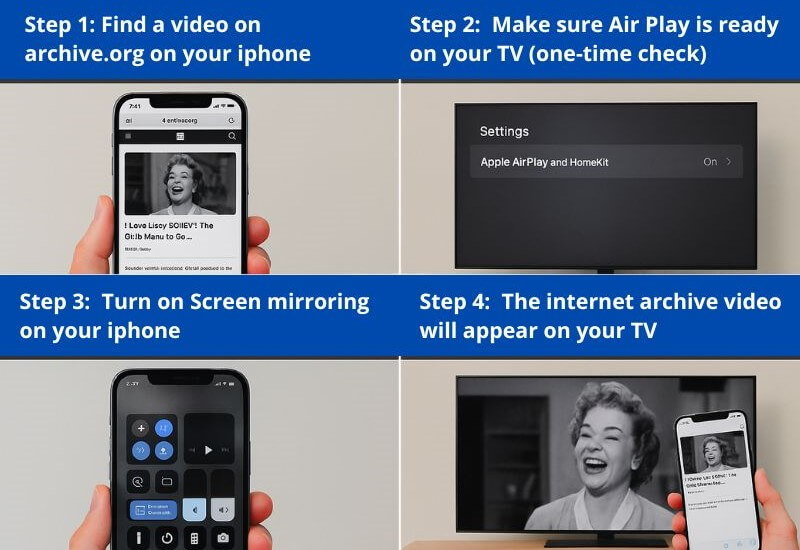
Step 2: Make Sure AirPlay Is On (One-Time Check)
- On your Apple TV or AirPlay TV, open Settings.
- Find AirPlay (or AirPlay and HomeKit).
- Make sure AirPlay is On.
You usually only need to do this once.
Step 3: Turn On Screen Mirroring on Your iPhone
- Swipe down from the top-right corner.
- This opens Control Center.
- Tap Screen Mirroring.
- Tap your Apple TV or AirPlay TV.
Step 4: Play the Internet Archive Video
- Return to your video page.
- Tap Play.
- Turn your phone sideways for full screen if you want.
- Your iPhone works like the remote: you can pause, rewind, or choose another episode from the phone.
Option C: Mirror your phone to a Smart TV (AirPlay or Screen Mirroring)
This is only for TVs that already support:
- Chromecast built-in (common on Android/Google TVs), or
- AirPlay (common on newer brand-name smart TVs).
What You Need
- A smart TV with Chromecast or AirPlay built in
- Same Wi-Fi
Step 1: Get the video ready
- On your phone, open archive.org in a browser.
- Open the video page.
Step 2: Use the Cast/AirPlay button (if you see it)
- If you see a Cast button, tap it.
- If you see an AirPlay option, tap it.
Step 3: Pick your TV
- Choose your TV from the list.
- Wait a few seconds.
Step 4: Watch and control
Your video will play on the TV.
Your phone controls pause and rewind.
Note: Since the Internet Archive video player is basic, you may need to keep your phone screen awake to maintain the connection.
If you do NOT see a Cast/AirPlay button:
Use Option A (Android screen mirror) or Option B (iPhone screen mirror).
Method 3: Connect a Laptop with an HDMI Cable
This old-school method is actually one of the most reliable. If you have a laptop and an HDMI cable, you can connect directly to your TV.
What You Need
- Laptop (Windows or Mac)
- HDMI cable
- TV with an HDMI port
Step 1: Connect the Cable
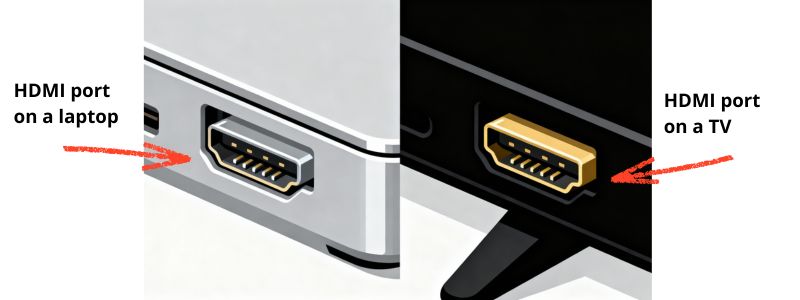
- Plug one end of the HDMI cable into your laptop.
- Plug the other end into an HDMI port on your TV (usually on the back or side).
Step 2: Switch Your TV Input
- Turn on your TV.
- Press the Input or Source button on your TV remote.
- Select the HDMI port you plugged into (like HDMI 1 or HDMI 2).
- Your laptop screen should appear on the TV.
Step 3: Play a Video
- On your laptop, open any web browser.
- Go to archive.org.
- Find a show and press play.
- The video plays on your TV with full sound.
Tip: If your laptop doesn’t have an HDMI port, you may need an adapter (like USB-C to HDMI for newer MacBooks).
Method 4: Download Videos and Play from USB
The Internet Archive lets you download videos as MP4 files. You can save them to a USB drive and play them on your TV, Roku, or Fire Stick.
Step 1: Download the Video
- On your computer, go to archive.org.
- Find a video you want to watch.
- Scroll down below the video player.
- Look for Download Options.
- Click on the MP4 (or MKV) file to download it. (MP4 is the safest format for most TVs and streaming devices. Some players also support MKV, but if a file won’t play, try an MP4 download instead.)
- Save it to your computer.
Step 2: Copy to a USB Drive
- Plug a USB flash drive into your computer.
- Copy the downloaded MP4 file to the USB drive.
- Safely eject the USB drive.
Step 3: Play on Your TV
On a Fire Stick:
- You’ll need a USB adapter (OTG cable) to connect the USB drive
- Use a file manager app to find and play the video
On a Roku:
- Use the Roku Media Player channel (free from the Channel Store)
- Plug the USB drive into your Roku (if it has a USB port — most Roku TVs do, but sticks don’t)
On a Smart TV:
- Most smart TVs have a USB port on the back
- Plug in the USB drive
- Your TV should detect it and let you browse and play files
Bonus: Explore the VHS Vault on Internet Archive
One of the hidden gems on Internet Archive is the VHS Vault — a collection of shows, movies, and recordings captured directly from old VHS tapes. It’s perfect for nostalgia lovers.
How to Find It
- Go to archive.org.
- In the search bar, type VHS Vault or Internet Archive VHS.
- Browse the collection for vintage recordings, commercials, and TV broadcasts.
You’ll find things like:
- Old TV recordings with original commercials
- Vintage movie trailers
- News broadcasts from the 70s and 80s
- Public access TV shows
Troubleshooting Common Problems
Video Won’t Play in Browser
- Try refreshing the page
- Use a different browser (Chrome or Firefox work best)
- Download the MP4 file instead and play it locally
Screen Mirroring Is Laggy
- Move your phone/device closer to your router
- Make sure no one else is streaming on your network
- Restart your router
Can’t Find the Cast or Mirror Option
- Make sure both devices are on the same Wi-Fi network
- Restart both your phone and TV
- Check that screen mirroring is enabled on your Roku or TV
- Look for one of these casting symbols on the video you want to cast to your screen and click it

Video Quality Is Poor
- Many classic shows on Internet Archive were recorded decades ago — some graininess is normal
- Try a different upload of the same show (search again and pick one with more views)
- Download the MP4 for better playback
Dialogue Is Hard to Hear
This is common with older recordings. A few things can help:
- Turn on closed captions if available
- Adjust your TV’s audio settings — my guide on making voices clearer without buying anything walks you through it
- If your TV speakers are weak, a simple pair of wireless TV headphones can make dialogue dramatically easier to understand.
Frequently Asked Questions
Is the Internet Archive free?
Yes. Everything on the Internet Archive is free to watch, download, and share. No account required, though creating one lets you save favorites.
Is it legal to watch these shows?
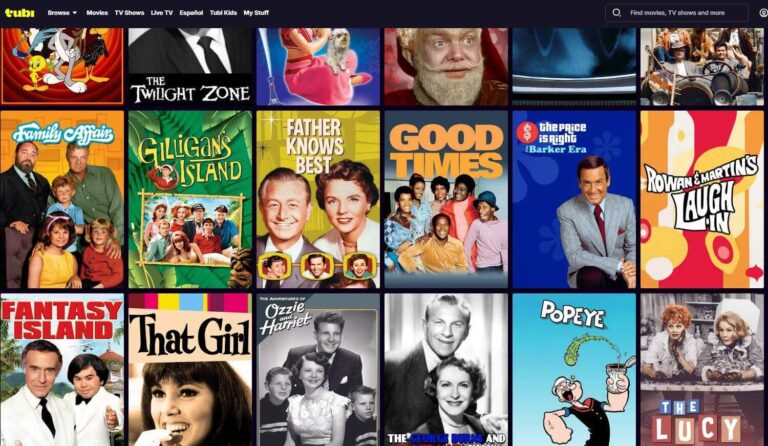
The Internet Archive is a nonprofit library, but availability can change—some uploads get removed. For the most reliable “always there” viewing, use official free services like Tubi, Pluto TV, and studio channels on YouTube.
Can I watch Internet Archive on a smart TV without a streaming device?
Maybe. If your smart TV has a built-in web browser (many Samsung, LG, and Sony TVs do), you can go directly to archive.org. The experience varies by TV model.
Wrap Up
Getting Internet Archive on your TV takes a little creativity since there’s no official app. But with a Fire Stick browser, phone casting, or a simple HDMI cable, you can enjoy thousands of free classic TV shows on your big screen.
The Internet Archive is a treasure trove of vintage television — from 1950s game shows to 1970s sitcoms to rare VHS recordings you won’t find anywhere else. Now you can watch it all from your couch.
Want more classic TV? (not just Archive?) Check out my complete guide to watching classic shows with easy-to-follow stepls.
Next step (if you want live channels too): Set up a TV antenna so you can watch local stations for free. See: How to set up an indoor TV antenna.
Happy watching — and enjoy the trip back in time!
The Internet Archive is a legitimate nonprofit digital library. The methods in this guide use official apps, built-in device features, or standard connections.
-
???? Internet Archive – About
Learn how the Internet Archive collects and preserves digital media, including vintage television. -
???? Internet Archive – Classic Television Collection
Direct access to the classic TV collection available for free viewing or download. -
???? Roku – Screen Mirroring Support
Official Roku instructions for screen mirroring from phones, tablets, and computers. -
⚖️ U.S. Copyright Office – Public Domain
Explains what “public domain” means and how it applies to older television broadcasts.