Cast From My Phone to My TV (Easy Steps That Actually Work)

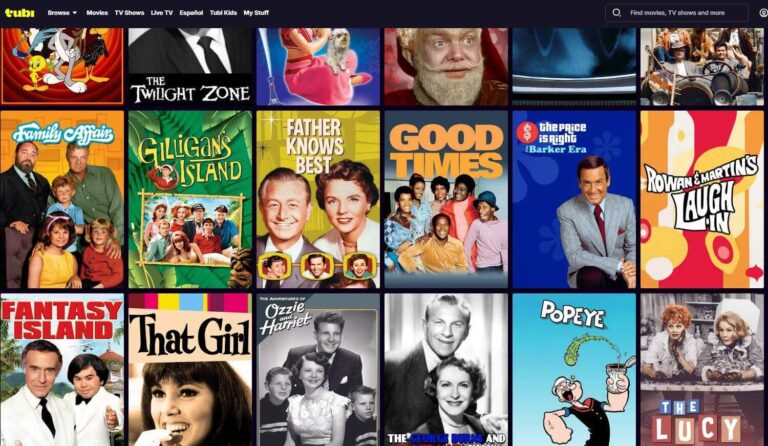
A while back, I was feeling nostalgic and found a classic 1970s show while scrolling through Tubi on my phone. I knew I didn’t want to watch it on a tiny screen, so when I got home, my goal was simple: get it onto my TV and watch it properly on the big screen.
If you haven’t installed the app yet, start here so you’re not hunting for it later.
This guide answers the exact question most people have: How do I cast from my phone to my TV? The good news is you don’t need to memorize a bunch of steps. You just need one rule:
If you see the Cast icon, use it. If you don’t, use screen mirroring.
Once casting is working, this guide helps you decide which free services are actually worth installing for older shows.
If you’re choosing between Roku and Firestick mainly for casting and ease of use, this comparison breaks down what it really feels like day to day.
How to Cast From Phone to TV (The Simple Rule)
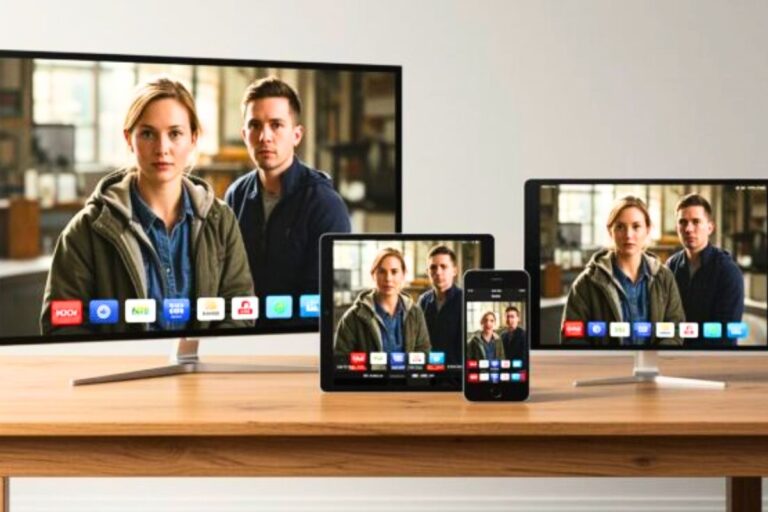
There are two ways to show the video on your phone screen on your TV: Casting and Mirroring.
- Casting means you tap a cast button and the TV plays the video.
- Screen mirroring means your TV shows your whole phone screen.
Casting and screen mirroring get confused a lot—there’s a simple rule that keeps it easy.
This is what a cast button looks like depending on whether you are using an Android or an Apple device. This button shows up near the bottom of the screen when you tap it to your phone or at the top right of the show:

Here’s the rule:
- If you see a casting button, use it.
- If you don’t see a casting button, use screen mirroring.
Here are the steps:
Try the Cast Button First
The first time I tried casting, I didn’t even notice the little cast icon sitting there. I kept tapping the video, turning my phone sideways, and wondering why nothing was happening. When I finally tapped the icon and the show popped up on my TV, I realized I’d been overthinking the whole thing. Most of these features aren’t complicated — they’re just not obvious until you’ve done them once.
This is the fastest method for most people:
- Open a video on your phone.
- Look for the cast icon. It looks like a small TV with Wi-Fi waves.
- Tap it.
- Pick your TV.
Your video should start playing on the big screen. This method works best with Chromecast and many newer smart TVs.
If You Have a Roku, Use Screen Mirroring
Different Android brands use different names for screen mirroring. Samsung phones call it Smart View, others may call it Screen Cast or Screen Mirror. The functionality is the same—you are projecting what is on your phone to your TV.
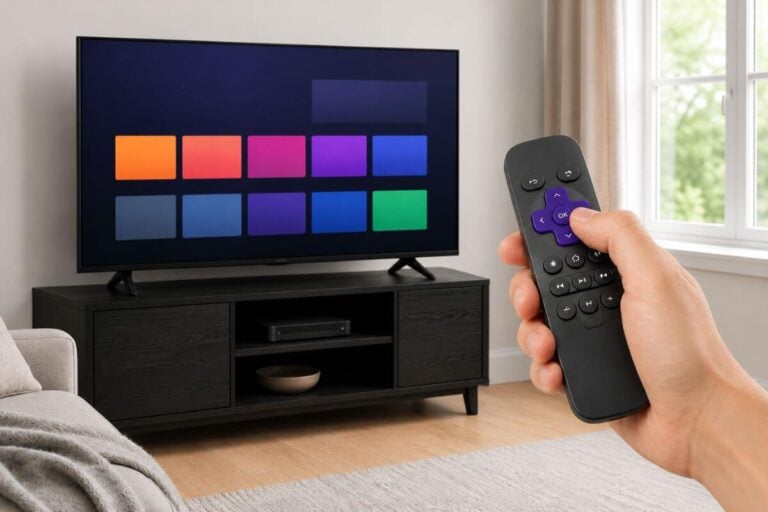
Mirroring works with a Roku stick or a Roku TV. If your Roku isn’t set up yet (Wi-Fi connected and showing the Home screen), this walkthrough gets it ready first.
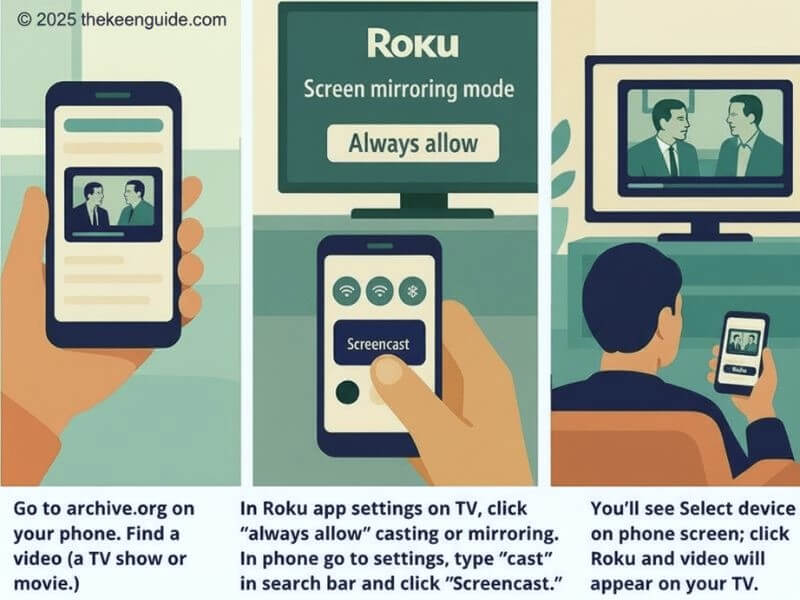
Mirroring from Android phone to Roku
On your Roku Device or Roku TV
- On your Roku, press Home.
- Go to Settings.
- Choose System.
- Choose Screen mirroring.
- Choose Screen mirroring mode.
- Pick Prompt or Always allow.
On your Android phone
- Swipe down from the top.
- Tap Cast, Screen Cast, Smart View, or Screen Mirror.
- Pick your Roku.
- Play your video.
???? Different Android brands label this feature differently. Samsung uses Smart View, Google Pixel and Motorola use Cast or Screen Cast, and others may say Screen Mirror or Wireless Display. The function is the same—mirroring your screen to the TV.
???? AirPlay on Roku only works on select Roku 4K TVs. Not all Roku devices support it, so if you are using an iPhone and don’t see your Roku listed under Screen Mirroring, your Roku model likely does not support AirPlay.
If You Have a Fire Stick or Fire TV, Mirror from Android
- On your Fire TV, open Display Mirroring. (Tip: Hold down the Home button on your remote for 3 seconds, then select “Mirroring” from the quick menu).
- On your Android phone, swipe down.
- Tap Cast or Smart View.
- Pick your Fire TV.
- Play your video.
???? iPhone users: Newer Fire TV models support AirPlay. If your Fire TV shows an AirPlay option in its Settings menu, you can mirror from an iPhone using Screen Mirroring the same way you would with an Apple TV.
Mirroring from iphone
Newer Fire TV models support AirPlay, so iPhone users can mirror videos using the Screen Mirroring or AirPlay feature without extra apps. On older Fire TVs, iPhones may require a third-party app for mirroring.
If You Have an iPhone, Mirror to Apple TV or an AirPlay TV
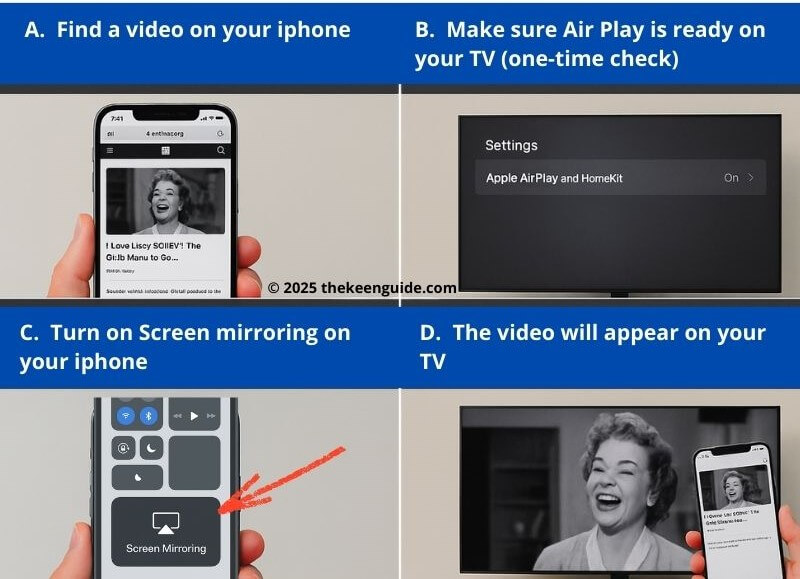
- Open your video on your iPhone.
- Swipe down from the top-right corner Tap Screen Mirroring.
- Pick your Apple TV or AirPlay TV. (Note: Most Roku 4K devices and newer Fire TV Omni/4-Series TVs now support AirPlay, so your iPhone will likely see them automatically.
- Press Play.
If You Want to Cast to a Smart TV
Only smart TVs with Chromecast built-in, AirPlay, or Miracast can cast directly. Check your TV’s specifications before trying to cast, or use screen mirroring if casting doesn’t work.
- If you see a cast icon, tap it and pick your TV.
- If you don’t see it, use screen mirroring from your phone.
A Quick Example: Cast Internet Archive to TV
If you want to cast Internet Archive to TV:
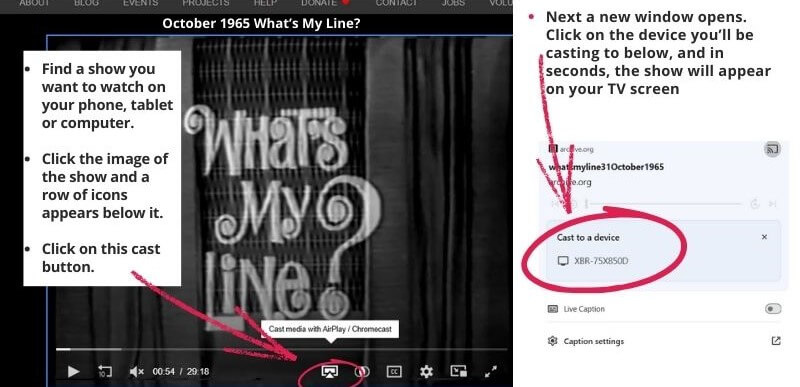
- Open archive.org on your phone.
- Find your episode.
- Look for the cast icon.
- If you see it, tap it and pick your TV.
- If you don’t see it, use screen mirroring.
Follow the same steps to stream a show from a tablet or computer to your TV.
If you want the full “do this on Roku / Fire TV / Smart TV” walkthrough for Internet Archive, this guide shows the simplest TV-friendly methods.
Casting Tubi or Pluto TV Works the Same Way
If you prefer watching free streaming apps like Tubi or Pluto TV, the casting steps are mostly similar, but there are small differences depending on your device and app. For example, Pluto TV may only show the cast icon after video playback starts. On Android, some Samsung phones may use Smart View instead of Cast, while Tubi on iPhone uses AirPlay.
On Android:
• Open the Tubi or Pluto TV app
• Start playing a video
• Tap the Cast icon in the top-right
• Select your TV or streaming device (Roku, Chromecast, smart TV)
On iPhone:
• Open Tubi or Pluto TV
• Start playing a video
• Tap the AirPlay icon
• Choose your Apple TV or AirPlay-compatible TV
That’s it—the same process as Internet Archive.
How to Cast From Your Phone to Your TV Without Wi-Fi
This is a common question, and you can target how to cast from phone to TV without WiFi and casting without WiFi here.
Most casting needs Wi-Fi. But you still have two options.
- Use a travel router or your phone’s hotspot—but both your phone and TV need to connect to the same network created by the router or hotspot.
- BEST CHOICE: Use an HDMI adapter (Make sure your specific phone supports “HDMI Alt Mode” or video out before buying an adapter. Some older or budget model phones do not).
???? The HDMI adapter is the most reliable option, and it’s very simple. This isn’t “casting” — it’s a direct wired connection — but it works every time.
It’s basically a short cord with two different ends:
• One small metal tip plugs into the charging port on your phone (USB-C on most Android models, Lightning on older iPhones).
• The other end connects to a standard HDMI cable, and that HDMI cable plugs into the HDMI input on your TV.
Once everything is connected and your TV is set to the correct HDMI input, your phone screen appears on the TV automatically.
What About Casting from Phone to Computer?
People search for casting from phone to computer. There is no reason to. The simplest method is to use the search bar to open the same website on your computer.
Troubleshooting
If you are experiencing glitches when trying to cast a show to your TV, try these steps:
- Ensure your phone and TV are on the same Wi-Fi.
- Restart both devices.
- Try screen mirroring instead of casting.
Simple Cheat Sheet
- Chromecast and many smart TVs work best with the cast button.
- Roku works best with Android screen mirroring.
- Fire TV works best with Android Display Mirroring.
- Apple TV and AirPlay TVs work best with iPhone Screen Mirroring.
- No Wi-Fi? Use HDMI.
Frequently Asked Questions
What is the easiest way to cast from my phone to my TV?
The easiest way is to use the Cast icon inside the video player. Open the video, tap the Cast icon, and pick your TV. If you don’t see the Cast icon, use screen mirroring instead.
Why won’t my phone find my TV?
Most of the time, this happens because your phone and TV are not on the same Wi-Fi. Check your Wi-Fi name on both devices. Then restart your phone and your TV.
What is the difference between casting and screen mirroring?
Casting sends just the video to your TV. Your phone becomes the remote. Screen mirroring shows your whole phone screen on the TV. If you open another app, your TV shows that too.
Does casting from phone to Roku work?
Yes. Casting from phone to Roku is easiest with Android screen mirroring. This works for a Roku stick and a Roku TV. Turn on Screen Mirroring on Roku, then use Cast or Screen Cast on your Android phone.
Does casting from phone to Firestick work?
Yes. Casting from phone to Firestick usually works best from Android using Display Mirroring on the Fire TV side and Cast or Smart View on the phone.
Can I cast from phone to TV without Wi-Fi?
Sometimes. Most casting needs Wi-Fi. If you don’t have Wi-Fi, your best options are a travel router, a phone hotspot, or an HDMI adapter. The HDMI adapter is the most reliable.
What about casting without Wi-Fi in hotels?
Hotel Wi-Fi can block casting. If you want the simplest option, bring an HDMI adapter.
Can I cast Internet Archive to TV?
Yes. Open the video on archive.org. If you see a Cast icon, tap it and pick your TV. If you don’t see it, use screen mirroring instead. For the full device walkthrough, link to your Internet Archive TV guide.
Can I do casting from phone to computer?
Sometimes. This is less common than TV casting. The simplest option is to open the same video directly on your computer.
Wrap-up
Casting from your phone to your TV is much easier when you stick to one rule: Cast when you see the icon; mirror when you don’t. Once you know which method your setup supports, you can get almost any show off your phone and onto the big screen in minutes.
If you want a simple, device-by-device example using public-domain shows, this guide walks through the easiest ways to watch Internet Archive on your TV.
And if you’re looking for other reliable places to stream older shows legally, this guide compares the best free options worth installing.