How to Watch YouTube on an Old TV (No Smart TV Needed)
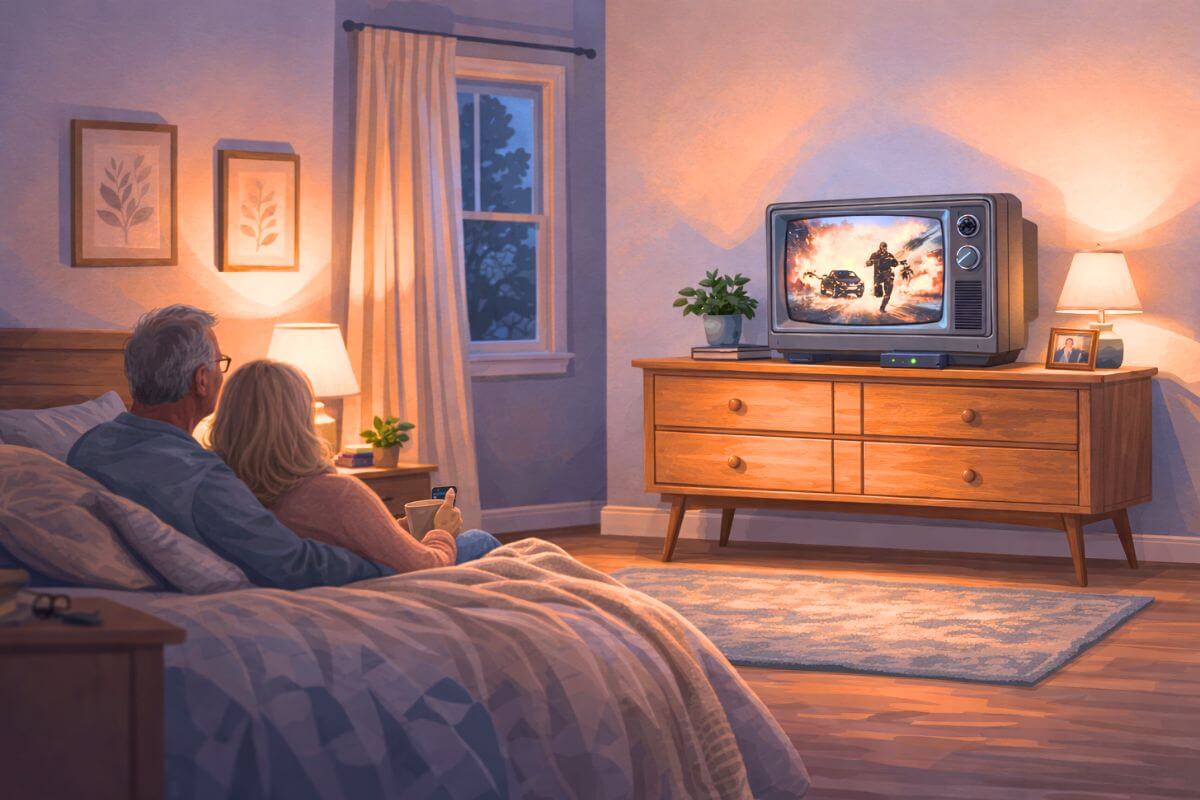
Did you know that some of the most beloved shows from the 1950s and ’60s almost vanished completely — until YouTube became an unlikely ark for classic television? Today, you can watch full episodes of Dragnet, Bonanza, and The Lone Ranger for free, without a subscription, in about thirty seconds.
If you’re looking for places to stream older shows legally, there are several free options available today. Once you know where to find them, the next step is getting YouTube onto your TV.
There are several simple ways to watch YouTube on an old TV using inexpensive devices, a phone, or the right cable connection. In this guide, you’ll learn the easiest methods step-by-step, including which option works best depending on the type of TV you have.
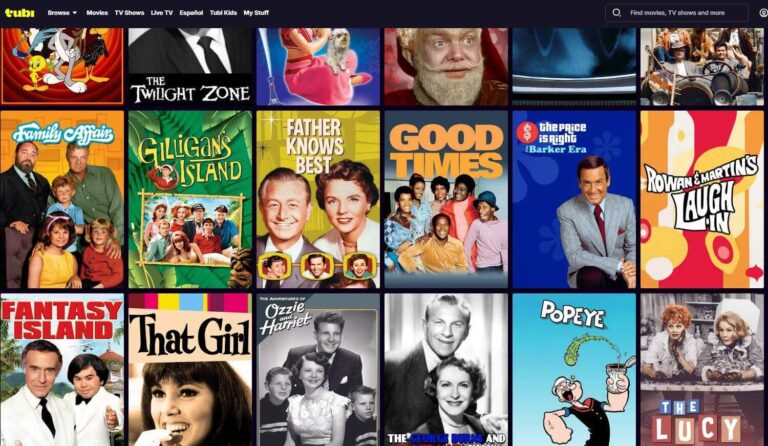
Once you get YouTube working on your TV, here are some of the best classic TV shows on YouTube you can start watching right away.
How to Watch YouTube on an Old TV Using a Streaming Device (Best Method)
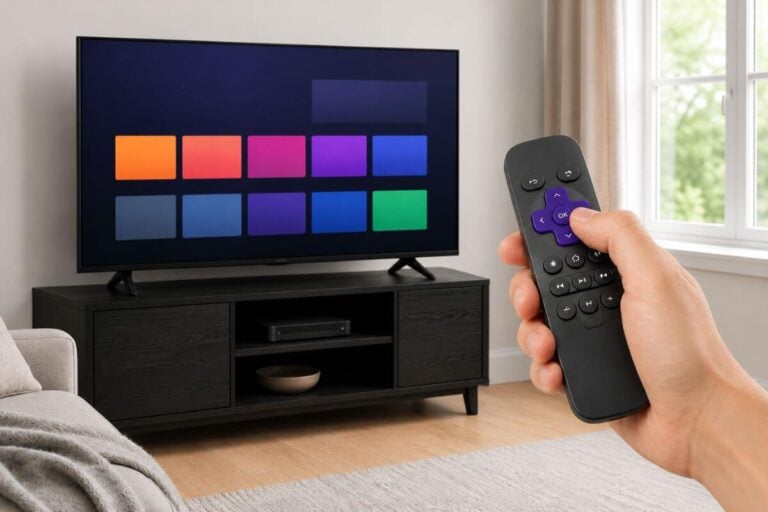
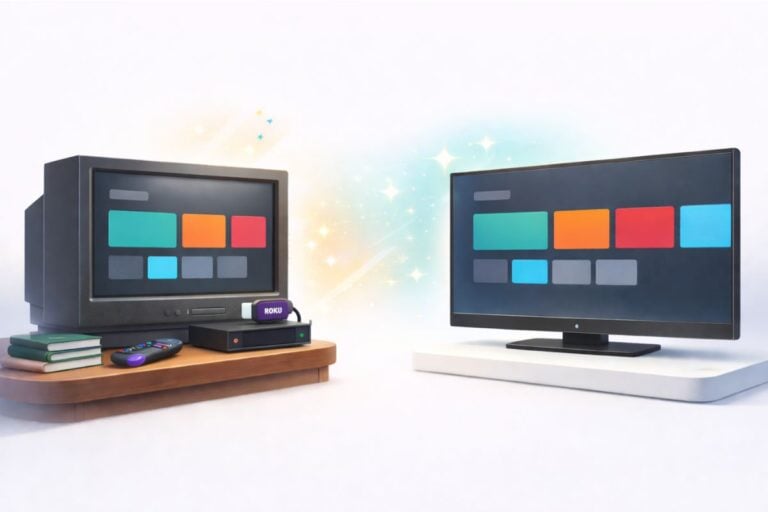
If your TV has an HDMI port, this is usually the easiest way to watch YouTube. A streaming device (like a Roku Stick or Fire TV Stick) plugs into your TV and adds apps.
Step 1: Check for an HDMI port on your TV
Look on the back or side of your TV for a port that says HDMI. It is a thin, wide slot.
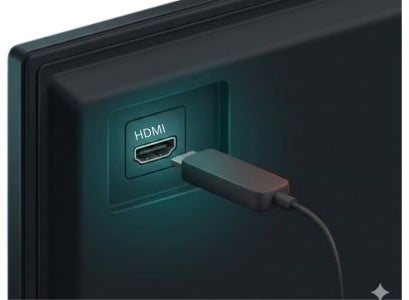
- If you have HDMI: you’re good to go.
- If you do not have HDMI: skip to the section about RF/coax and older cable hookups.
Step 2: Plug in the streaming device
- Plug the streaming stick (Roku, Firestick) into the TV’s HDMI port.
- Plug the device’s power cable into the stick.
- Plug the other end of the power cable into a wall outlet (or the TV USB port if it has one).
If YouTube works but your Roku remote stops responding, this guide shows what to try first.
Step 3: Set your TV to the right input
- Turn on the TV.
- Press the Input or Source button on your TV remote.
- Choose the HDMI port you used (example: HDMI 1).
You should see the setup screen for Roku/Fire TV.
Step 4: Connect to WiFi
Follow the on-screen steps to connect the streaming device to your home WiFi.
- Pick your WiFi name
- Type your WiFi password
- Wait for it to connect
Step 5: Open the YouTube app
Most devices already have YouTube.
- Find YouTube on the home screen.
- Open it.
- Pick a video and press Play.
If you’re looking for classic shows to start with, here’s a list of the best classic TV shows on YouTube that are currently available to stream for free.
Optional but helpful:
- If you want to sign in, you can sign in on-screen.
- If you don’t want to sign in, you can still watch most videos.
Step 6: Make it easier to use every day
To make this simple later:
- Put YouTube on the first row of apps
- Turn on the setting to start on the home screen
- Keep the streaming remote next to the TV remote
Why this is the best method for most people
- Works on almost any TV with HDMI
- Cheap (one-time cost)
- Easy to repeat every day
- YouTube runs smoother than casting for many people
Many people who already use an antenna to watch free local channels add a small streaming device like this to watch YouTube and other free streaming content on the same TV.
If you want more than YouTube, the same setup can also help you stream on a non-smart TV using apps like Tubi, Pluto TV, and Netflix.
Once a streaming device is connected, you can also control YouTube from your phone using a feature called casting.
How to Cast YouTube to an Old TV From Your Phone
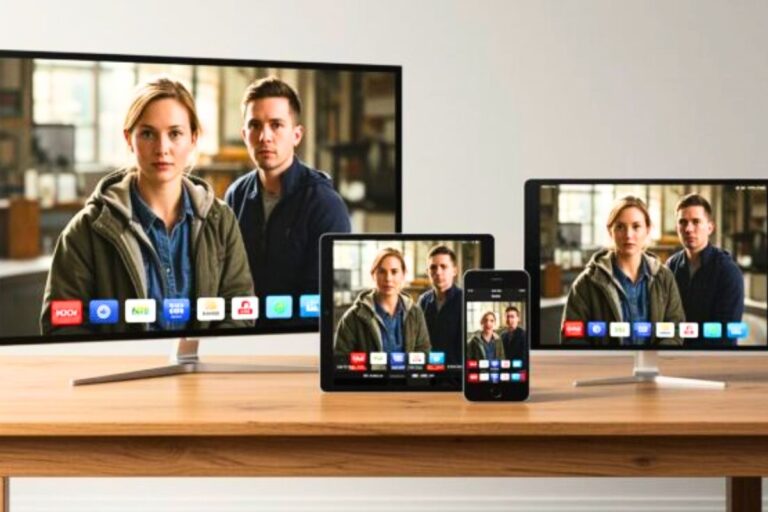
Casting lets you play YouTube on your TV using your phone as the remote. You tap a button on your phone, and the video appears on your TV screen.
This method works if your TV is connected to a Roku, Fire TV, or another streaming device.
If you haven’t set one up yet, start with this simple guide on how to set up Roku on your TV before trying to cast.
Step 1: Make Sure Everything Is on the Same WiFi
Your phone and your TV device must be connected to the same WiFi network.
- Check WiFi on your phone
- Check WiFi on your Roku or Fire TV
- The network name must match
If they are not on the same WiFi, casting will not work.
If you still need to set up your Roku, follow your Roku setup guide first before trying to cast.
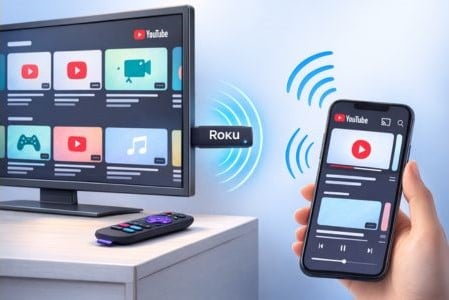
Step 2: Open YouTube on Your Phone
- Open the YouTube app on your phone.
- Choose a video.
- Look for the Cast icon (a small rectangle with WiFi waves in the corner).
Tap it.
Step 3: Choose Your TV
After you tap the Cast icon:
- A list of devices will appear.
- Tap the name of your TV or Roku device.
Within a few seconds, the video should appear on your TV screen.
Now your phone acts like a remote.
You can pause, play, or choose another video from your phone.
Why Casting Is Helpful
- You don’t have to type on the TV screen.
- You can search faster on your phone.
- It works well for short videos.
Many people who already use a small streaming device to cut cable and watch free content use casting when they want something quick without navigating menus on the TV.
If the Cast Button Is Missing
- Make sure both devices are on the same WiFi.
- Restart your phone and the streaming device.
- Open the YouTube app directly on the TV instead.
If problems continue, you may need to update the streaming device software.
How to Watch YouTube on an Old TV Using a Laptop and HDMI Cable
If you have a laptop, this is one of the simplest ways to watch YouTube on an old TV.
You do not need a streaming device.
You do not need to cast from your phone.
You only need an HDMI cable.
Step 1: Check for an HDMI Port
Look on the back or side of your TV for a port labeled HDMI.
If you see one, this method will work.
If your TV only has a round screw-on cable or red, white, and yellow plugs, skip to the section about coax and converter boxes.
Step 2: Connect the Laptop to the TV
- Plug one end of the HDMI cable into your laptop.
- Plug the other end into the TV’s HDMI port.
- Turn on the TV.
Step 3: Change the TV Input
- Press the Input or Source button on your TV remote.
- Choose the HDMI number you used.
Your laptop screen should now appear on the TV.
Step 4: Open YouTube
Open your web browser and go to YouTube.com.
Click a video and press Play.
Your laptop now controls everything, and the video plays on the TV screen.
How to Watch YouTube on a Very Old TV Using Coax or RCA Cables
If your TV is a large box-style TV (often called a CRT), it likely does not have HDMI.
These TVs were common before about 2008.
Instead of HDMI, they usually have:
- A round screw-on cable connection (coax)
- Red, white, and yellow plugs (RCA or composite cables)
If your TV only has these older connections, you can still watch YouTube — but you need an extra device to convert the signal.
Using Coax (RF) on Very Old TVs
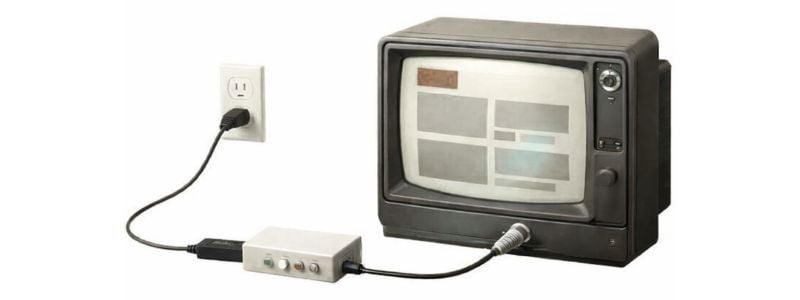
If your TV only has a round screw-on connector labeled:
- Antenna
- Cable
- RF In
then your TV was likely made before about 2005.
To watch YouTube, you still need a streaming device. The converter box does NOT provide YouTube by itself.
You will need:
- A streaming device (Roku, Fire Stick, etc.)
- An HDMI-to-RF converter box
- A coax cable
Here’s how it connects:
Streaming device → HDMI converter → Coax cable → TV
The streaming device runs YouTube.
The converter only changes the signal so your TV can display it.
After everything is connected:
- Turn the TV to Channel 3 or 4
- Open YouTube on the streaming device
Casting from your phone will also work — but only if the streaming device is connected first. Casting does not work directly through coax alone.
Using Red, White, and Yellow RCA Cables
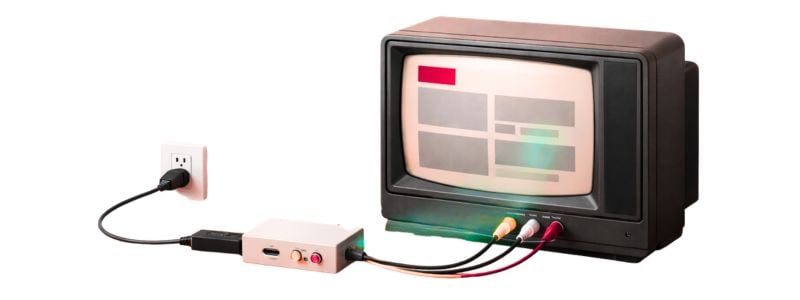
If your TV has three colored ports:
- Yellow (video)
- Red (audio right)
- White (audio left)
Your TV was likely made between 1995 and 2010.
Again, you still need a streaming device.
You will need:
- A streaming device (Roku, Fire Stick, etc.)
- An HDMI-to-AV converter
- Red, white, and yellow RCA cables
Connection path:
Streaming device → HDMI converter → RCA cables → TV
The streaming device runs YouTube.
The converter changes the HDMI signal into composite video.
After connecting:
- Switch the TV input to “AV” or “Video”
- Open YouTube on the streaming device
Casting from your phone works here too — but only because the streaming device is connected. The TV itself cannot receive a cast signal.
How Old Does the TV Need to Be?
- If your TV is thick and heavy (tube-style), it likely needs a converter.
- If your TV is flat but does not have HDMI, it likely needs a converter.
- If your TV has HDMI, you do NOT need a converter.
If you are unsure, look for HDMI first. That is the deciding factor.
Can You Watch YouTube on an Old TV Without WiFi?
- In most cases, you need WiFi to stream YouTube.
- Streaming devices and casting both require internet access.
However, there are two exceptions:
• You can connect a laptop directly with an HDMI cable.
• You can use a mobile hotspot from your phone if you do not have home internet.
If you do not have reliable WiFi, the laptop method is usually the simplest solution.
Why YouTube May Not Work on Your Old TV (Quick Fixes)
If YouTube will not play, try these quick steps:
• Make sure your device is connected to WiFi
• Restart the streaming device
• Restart your TV
• Check for software updates on the streaming device
• Make sure the TV input is set correctly
If you are using a converter box, double-check that:
• All cables are firmly connected
• The TV is on Channel 3 or AV (depending on setup)
• The converter box is powered on
Most problems are simple connection or WiFi issues.
Having Trouble Casting YouTube?
If the video will not connect, freezes, or the Cast button is missing, the problem is usually:
- Devices not on the same WiFi
- Outdated Roku or Fire TV software
- Weak WiFi signal
- Streaming device not fully set up
If casting keeps failing, follow this step-by-step guide to casting from phone to TV for a full walkthrough.
Why YouTube May Look Blurry on a Very Old TV
If you are using a tube-style TV (CRT), the picture will not look high definition.
That is normal.
Very old TVs were designed for standard-definition signals. Even if YouTube is playing in HD, the converter lowers the signal so your TV can display it.
You may notice:
- Softer picture
- Less sharp text
- Black bars on the screen
This does not mean something is broken.
To get the best picture possible:
- Use a good-quality converter
- Make sure cables are firmly connected
- Set YouTube to the highest available quality in settings
- Sit slightly farther from the screen
If your TV has HDMI, the picture will look much clearer than it does through coax or RCA cables.
If YouTube Sounds Hard to Hear
If you are using a flat-screen TV with HDMI, unclear voices are usually caused by TV sound settings — not YouTube.
Many modern TVs lower dialogue and boost background sound. Before buying anything, try adjusting your TV’s audio settings. This guide to making TV voices louder and clearer explains which settings to change.
If you are using a very old tube-style TV (CRT), you will not have advanced sound settings. In that case, improving volume may require external speakers or headphones instead.
Frequently Asked Questions
Can I watch YouTube on an old TV without a smart TV?
Yes. You can watch YouTube on an old TV by using a streaming device, connecting a laptop with an HDMI cable, or using a converter if the TV only has coax or RCA inputs. You do not need to buy a new smart TV.
Do I need Roku or Fire Stick to watch YouTube on an old TV?
Yes. You need some type of streaming device to run the YouTube app. Roku and Fire Stick are common options, but any HDMI streaming device will work. If your TV does not have HDMI, you will also need a converter.
Can I cast YouTube to an old TV without WiFi?
No. Casting requires both your phone and the streaming device to be connected to the same WiFi network. If you do not have home WiFi, you can use a laptop with an HDMI cable instead.
What if my old TV only has a coax cable connection?
If your TV only has a round coax input, you will need both a streaming device and an HDMI-to-RF converter. The converter changes the signal so your older TV can display it.
Why is YouTube not working on my TV?
Most problems are caused by WiFi connection issues, outdated streaming device software, or the TV being set to the wrong input. Restarting the TV and streaming device usually fixes the problem.
You do not need a smart TV to watch YouTube.
If your TV has HDMI, a small streaming device is the easiest solution. If it does not, a simple converter can make even a very old TV work again.
Start with the method that matches the ports on the back of your TV. Once it’s connected, YouTube works just like it would on a newer set.
Older TVs still have plenty of life left. You just need the right connection.