How to Set Up a Soundbar on Any TV
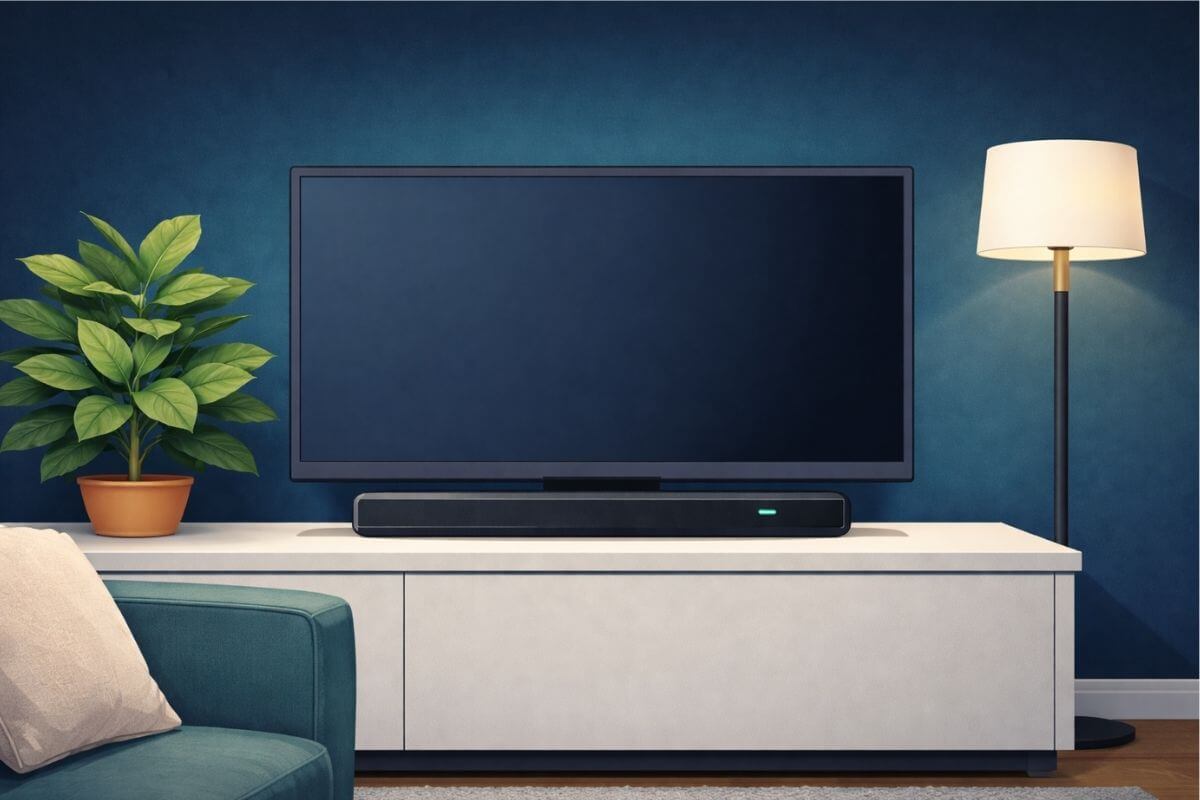
Most soundbars work with almost any TV, including older TVs that are not smart TVs. Setup usually depends on which cable you use and one simple TV audio setting. A soundbar is a long, thin speaker that sits under your TV and replaces the tiny speakers built into modern flat-screen TVs.
Modern TVs use very small speakers that often point downward or toward the back of the TV, which makes dialogue harder to hear. We explain this in more detail in why modern smart TVs often have poor sound quality.
This guide shows you how to set up a soundbar step-by-step, confirm it’s working, and fix common problems like soundbar no sound using a simple setup with no home-theater system or extra speakers.
Nothing here is permanent. You won’t damage your TV by trying these steps.
If you want to try improving dialogue first (without buying anything),start with these simple steps to make TV voices louder and clearer.
Do Soundbars Work on Any TV?
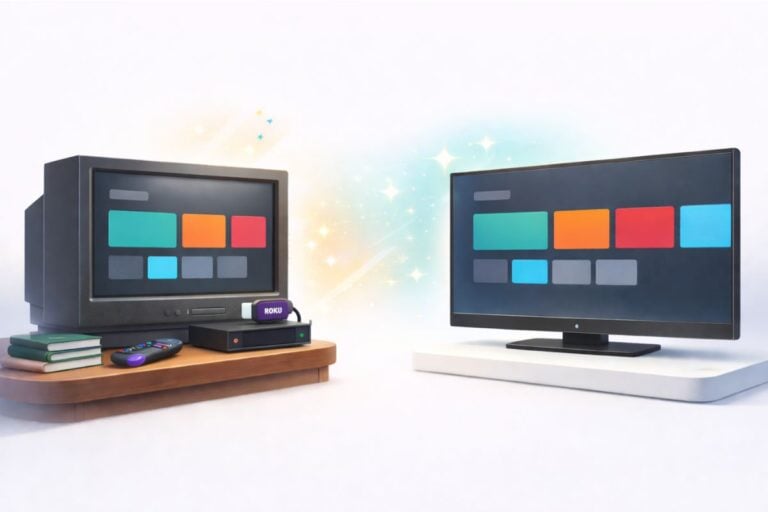
Yes — in most cases soundbars work with almost any TV. What matters is how your TV sends sound out, not the brand or whether the TV is smart.
You do not need Wi-Fi, apps, or a streaming device for a soundbar to work. This applies even if you’re using a soundbar with an older TV.
TV age matters more than the TV brand.
- Newer TVs usually have HDMI ARC.
- Older TVs usually have Optical (Digital Audio Out).
If your TV has either of these, a soundbar will usually work.
If your TV’s sound has always seemed thin or weak, it’s usually because modern TVs use very small downward-firing speakers. This is explained in more detail in why modern smart TVs often have poor sound.
What You Need Before You Start
You only need a few things for a basic soundbar setup:
Your soundbar
Power cable
One audio cable (HDMI ARC or Optical)
Your TV remote
You do NOT need:
A home theater system
Extra speakers or a receiver
Wi-Fi or apps
This setup works whether your TV is brand new or you are connecting a soundbar to an older TV.
Step 1 — Connect the Soundbar to Your TV
On the back of your TV you will usually find one of three audio ports: HDMI ARC (a flat HDMI slot labeled ARC), Optical (a small square port), or a Headphone/AUX jack (a small round hole).
You only need one matching port.
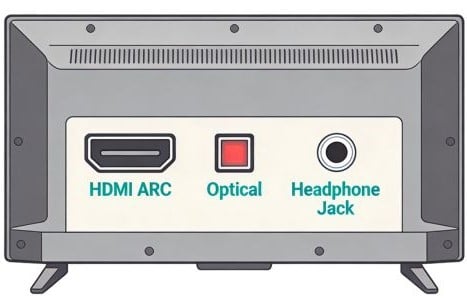
Here are your options, starting with the easiest:
Option 1: HDMI ARC (Best and simplest)
If your TV has an HDMI port labeled ARC, use that port.
Plug one end of the HDMI cable into the TV port labeled HDMI ARC.
Plug the other end into the soundbar’s HDMI ARC port.
ARC only works on the HDMI port labeled ARC. Other HDMI ports will not send sound to the soundbar.
What if my Roku or Fire Stick is already there?
If your Roku or Fire Stick is already in the ARC port:
This is very common. Just move it to another HDMI port.
You are not changing any settings yet — you are only moving where it’s plugged in.
- Move the Roku or Fire Stick to a different HDMI port
- Press Input or Source on your TV remote
- Select the new HDMI number (HDMI 1, HDMI 2, etc.) so your Roku or Fire TV Stick and your TV are connected to the same port number.
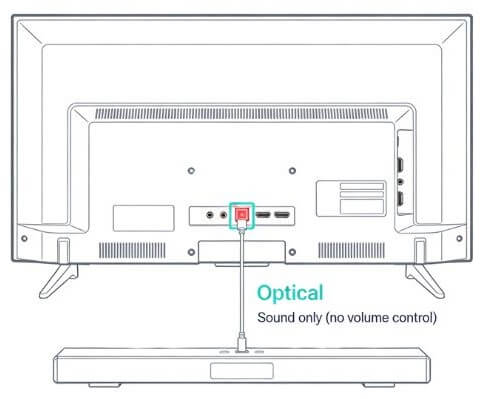
Option 2: Optical Cable (Common on older TVs)
If your TV does not have HDMI ARC, look for Optical (Digital Audio Out).
- Plug the optical cable into the TV’s Optical Out port.
- Plug the other end into the soundbar.
This sends clear sound but usually requires the soundbar remote for volume.
Step 2 — Set Your TV to Use the Soundbar
This step is required. Plugging in the cable alone is often not enough.
After the cable is connected:
- Turn on the TV
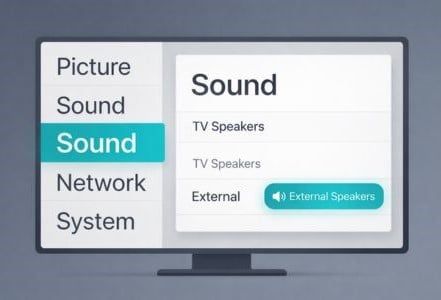
- Go to Settings → Sound or Audio
- Change the speaker setting from TV Speakers to:
- External Speakers
- HDMI ARC
- Optical, depending on your connection
This step fixes many cases of a soundbar with no sound. This is the step most people miss. If you don’t hear sound, it does not mean the soundbar is broken.
Do Soundbars Work With Old Tube TVs?
Most old tube TVs — the short, deep “box” televisions made before flat-screens — do not work well with modern soundbars.
The main reason is that tube TVs were built long before soundbars existed. Most of them do not have the audio connections soundbars rely on, such as:
- HDMI ARC
- Optical (Digital Audio Out)
Without one of those ports, a typical soundbar cannot receive sound from the TV.
In a few cases, a tube TV may have a headphone jack (a small round audio port). If it does, you may be able to connect a soundbar using a headphone-to-AUX cable. However, this setup usually has several drawbacks:
Volume control can be awkward
Sound quality is often limited
Many newer soundbars no longer support AUX inputs
Even when the connection works, the results are often disappointing.
In addition, many tube TVs already have large front-facing speakers, which can sound fuller than the tiny speakers built into modern flat-screen TVs.
Because of this, a soundbar usually won’t improve the sound much on a tube TV — even if you manage to connect it.
No Sound? Fix These 5 Things First
If you don’t hear sound yet, pause here. This is usually easy to fix. Check these in order:
- Make sure the soundbar is turned on
- Confirm the TV audio output matches the cable you used
- Make sure TV speakers are turned off
- Check that the soundbar input matches HDMI or Optical
- Turn both the TV and soundbar off, wait 10 seconds, then turn them back on
Can You Use One Remote for Volume?
This depends on how you connected the soundbar.
- HDMI ARC: often allows volume control with your TV remote
- Optical: usually requires the soundbar remote
Simple rule:
- HDMI ARC = best chance of one remote
- Optical = two remotes is normal
This applies whether you use a Roku TV, Fire TV, or a regular TV.
How do I get the best sound from my soundbar?
Many people stop after connecting the soundbar, but a few small adjustments can make voices clearer and improve overall sound. These quick fixes often make a bigger difference than upgrading the soundbar itself.
1. Place the soundbar correctly
Bad placement kills clarity.
- Center it directly under the TV
- Front edge of the cabinet (not pushed back)
- Nothing blocking the front grille
- If wall-mounted, keep 3–6 inches below the TV
Why: dialogue comes from the center channel. Blocking it muffles voices.
2. Use HDMI ARC/eARC instead of optical
Best connection order:
- HDMI ARC / eARC → best sound + volume control with TV remote
- Optical cable → good but limited formats
- Bluetooth → worst for TV (compression + delay)
HDMI ARC lets the TV pass higher-quality audio to the soundbar.
3. Turn on “Clear Voice” or “Dialogue” mode
Most soundbars include a speech-boost feature.
Look for modes like:
- Dialogue
- Clear Voice
- Voice Enhance
- Speech Mode
These boost the mid-range frequencies (1–4 kHz) where human speech lives.
4. Lower bass if voices sound muddy
Too much bass hides dialogue.
Quick fix:
- Reduce bass / subwoofer level
- Increase center channel or dialogue level (if available)
Typical good balance:
- Bass: -2 to 0
- Dialogue: +2 to +4
5. Turn off fake surround modes
Many soundbars default to “Cinema” or “Virtual Surround.”
These often spread voices across channels, making them harder to hear.
Try:
- Standard
- Stereo
- Dialogue mode
You’ll usually get clearer speech.
6. Check your TV audio settings
Your TV may be degrading the signal.
Recommended settings:
- Audio Output: HDMI ARC / External Speaker
- Digital Audio Format: Pass Through or Auto
- Volume leveling: OFF
- Dolby processing: ON (if supported)
7. Run the soundbar’s room calibration (if available)
Higher-end bars have auto-tuning.
Examples:
- Sonos Trueplay
- Samsung SpaceFit
- LG AI Sound Calibration
This adjusts sound based on room size, reflections, and seating distance.
✅ Quick improvement most people notice immediately:
Turn on Dialogue Mode and lower bass slightly.
3 Soundbar Settings That Often Make Dialogue Harder to Hear
Even a good soundbar can sound muddy if these settings are wrong.
1. Bass Turned Up Too High
Strong bass can overpower speech and make dialogue harder to understand.
2. Virtual Surround Enabled
Some surround modes spread voices across channels instead of keeping them centered.
3. TV Set to PCM Instead of Pass-Through
Some TVs compress audio when set to PCM. If available, Pass-Through or Auto usually sends better audio to the soundbar.
When a Soundbar May Not Be Enough
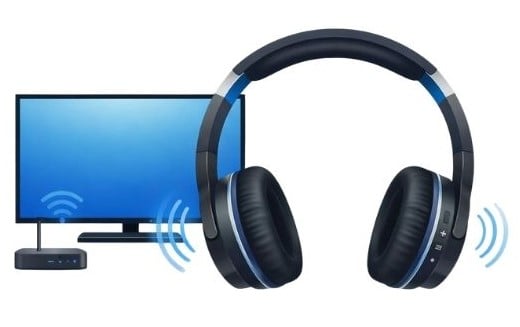
A soundbar improves room sound for everyone, but it does not isolate voices.
If one person still struggles to hear dialogue clearly, TV headphones may work better. Before you buy, read the pros and cons of each.
Ready to Choose a Soundbar?
Once your TV is set up correctly and sound is coming through the soundbar, the hard part is done.
From here, choosing a soundbar is much easier because you already know:
- Which cable your TV uses
- That your TV works with a soundbar
- That sound is coming through correctly
If you’re trying to decide which soundbar actually improves TV dialogue, see my guide to the best soundbars for clear TV dialogue, where I compare options for small rooms, large living rooms, and older TVs.
Once your TV is set up correctly and sound is coming through the soundbar, the hard part is done. You do not need to repeat these steps, reset your TV, or adjust settings again.
The setup stays the same, whether you
- change channels
- use a streaming device like Roku or Fire TV
- turn the TV off and back on
Why Is My Soundbar Out of Sync With the TV?
Sometimes the sound from a soundbar does not match the picture on the screen. This is called audio delay or lip-sync error, and it can happen with HDMI, optical, or streaming devices.
Common causes include:
TV Audio Processing
Some TVs process audio before sending it to the soundbar, which can delay the sound slightly.
Fix: Check the TV audio menu for Audio Delay, Lip Sync, or AV Sync and adjust it until voices match the picture.
Streaming Devices
Roku, Fire TV, and other streaming devices sometimes introduce a small delay.
Fix: Look for Audio Sync Adjustment in the streaming device’s settings.
Soundbar Processing Modes
Some soundbars add delay when surround or enhancement modes are turned on.
Fix: Try switching to Standard or Stereo mode.
Most soundbars also include a Lip Sync or Audio Delay setting in their menu to correct this.
Frequently Asked Questions
Do I need to redo setup if I unplug the TV?
No. As long as the soundbar is plugged back into the same port, your TV will remember the settings.
Will I need to adjust these settings every time I watch TV?
No. Once the TV is set to use external speakers, it stays that way.
What if the sound suddenly stops working later?
This usually happens if:
The soundbar is turned off
The TV input was changed
A cable came loose
Check those first before changing any settings.
Can I use this setup with cable, antenna, or streaming?
Yes. This setup works for:
Antenna TV
Cable TV
Roku, Fire TV, Apple TV, or built-in apps
You do not need to change anything when switching between them.
Is HDMI ARC better than Optical?
HDMI ARC is usually easier because it often allows one remote for volume. Optical works well too, but may require the soundbar remote.
Both are correct choices.
What if I still can’t hear voices clearly?
A soundbar improves sound for the whole room, but it does not send voices directly to one person.
If one person still struggles to hear dialogue, TV headphones may work better.
If you’re not sure whether a soundbar or TV headphones will help more, use this comparison to see the pros and cons of each for hearing TV dialogue.
Wrap-Up
Setting up a soundbar is usually a one-time task. Once the cable is connected and your TV is set to use external speakers, the system should work automatically every time you turn on the TV.
If sound ever stops working later, the cause is usually simple — the soundbar was turned off, the TV input changed, or a cable came loose.
At this point you know how soundbars connect, which ports your TV uses, and how to fix the most common setup problems. That makes it much easier to choose the right model.
If you’re ready to compare options, here’s a guide to the best soundbars for clear TV dialogue, including models for small rooms, larger living rooms, and older TVs.