Free Classic TV Shows on YouTube — Full Episodes Worth Watching
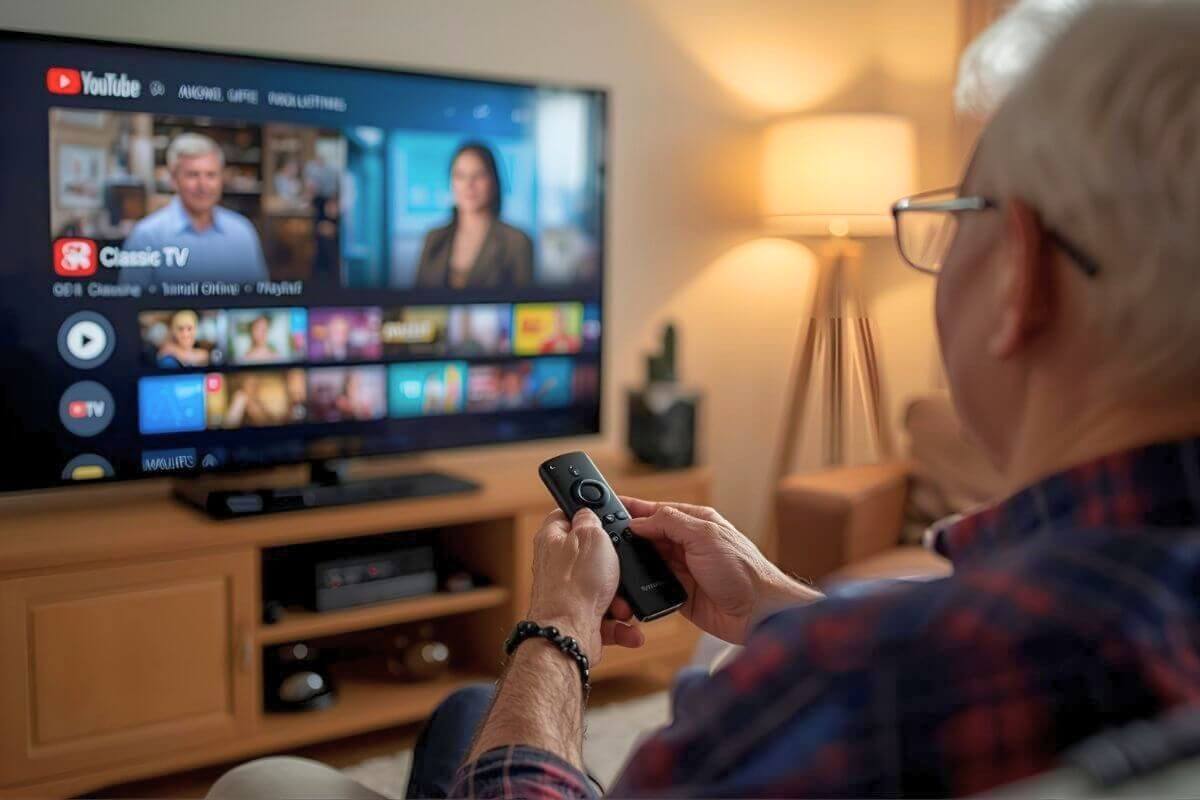
Did you know that some of the most beloved TV shows from the 1950s and 60s almost vanished completely — until YouTube became an unlikely ark for classic television?
Today you can watch full episodes of Dragnet, Bonanza, and The Lone Ranger for free, without a subscription, in about thirty seconds. No account required. Here is exactly how to find them.
One thing worth knowing upfront: Not every classic show is on YouTube, and the ones that are there can disappear without warning if licensing agreements change. This guide shows you exactly which shows are reliably there, which ones have moved to other free apps, and how to watch any of them on your actual television — not just your phone.
What Can You Watch on YouTube Right Now?
These shows have full episodes available on YouTube right now:
- Dragnet → multiple full episodes from official and public-domain channels
- The Lone Ranger → full episodes widely available
- Bonanza → select full episodes and clips
- The Beverly Hillbillies → full episodes on curated channels
- The Lucy Show → public domain and official uploads
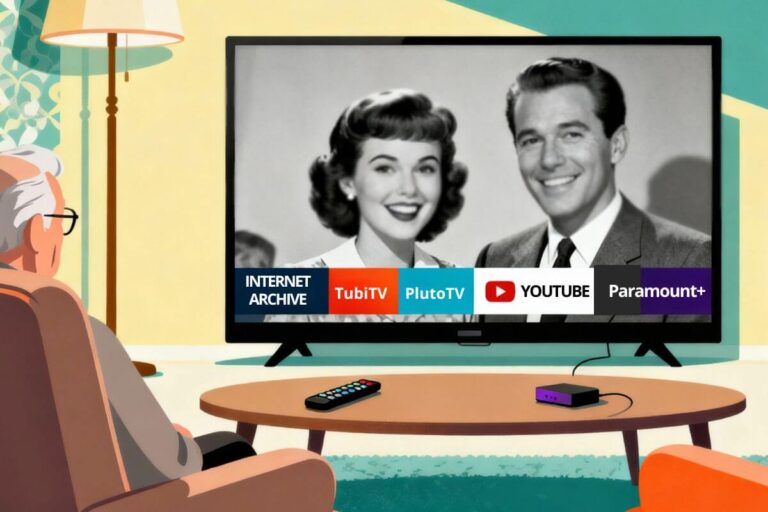
If a show disappears, it usually moved to Tubi or Pluto TV — not gone completely.
The Fastest Way to Start Watching (Under 30 Seconds)
- Open YouTube on your TV or phone
- Search: “Bonanza full episodes” or any show you like
- Select a playlist or official channel
- Press Play
No account required. No setup needed.
Want full seasons with better organization and fewer missing episodes? Tubi or Pluto TV are your next step — and both are completely free.
When YouTube Is the Best Choice (and When It’s Not)
Use YouTube if:
- You want instant access with no setup
- You’re searching for a specific show
- You don’t want to install apps
Use Tubi or Pluto TV if:
- You want full seasons organized
- You don’t want videos disappearing
- You prefer a TV-like experience
Most people use YouTube first, then switch to Tubi or Pluto for better organization.
How to Get Into Classic TV Shows on YouTube
The easiest way to get into classic TV shows is to start with one familiar series. Search for a show you recognize, watch one episode, and follow the recommendations to find similar shows.
???? If you want episode ideas, see the best Columbo episodes to start with.
???? Or browse the top 60s TV shows and where to find them.
What Classic TV Shows Can You Watch on YouTube?
Tip: If a show doesn’t appear right away, try adding “full episodes” or check another free app like Tubi or Pluto TV — YouTube listings change often.
You can find many classic TV shows on YouTube, especially from the 1950s through the 1970s. Popular examples include:
- The Beverly Hillbillies
- Dragnet
- The Lone Ranger
- The Lucy Show
- Bonanza
Some are available as full episodes through official channels, while others are part of public domain collections.
How to Find Full Episodes on YouTube
Most people search YouTube the wrong way. If you want full episodes, add words like full episodes, complete episodes, playlist, or the show name plus the year. That usually helps you find real episode uploads instead of random clips.
A few things to look for:
- A channel with a clear playlist for the show.
- Titles that say full episodes or complete episodes.
- A steady upload pattern from the same channel.
- A channel that seems organized, not random.
If all you see are clips, shorts, or scene compilations, keep searching. The best full-episode uploads are often hidden in playlists or on channels that use the series name instead of broad keywords.
What to Look for Before You Click
Not every YouTube result is worth your time. Some videos look right but only show a few minutes, a trailer, or a chopped-up clip. Before you click, check the title, the channel name, and the runtime.
Watch for these signs:
- The title clearly says full episode or complete episode.
- The runtime is longer than a clip.
- The channel looks focused on one show or one era.
- The video is part of a playlist.
This saves time and helps you find the good stuff faster.
Why Classic TV Shows Are Easy to Find on YouTube
Classic TV shows are easy to find on YouTube because many older programs are now in the public domain or are officially uploaded by studios. This allows full episodes to be streamed for free without a subscription.
This makes YouTube one of the easiest places to watch classic TV episodes for free — especially for viewers using smart TVs, Roku, Fire TV, or older televisions connected through streaming devices.
If you’re building a simple setup to watch classic television without cable, YouTube often works alongside free over-the-air channels received through a TV antenna, giving access to both streaming classics and live local broadcasts — similar to the setup explained in this step-by-step guide to cutting cable while keeping free TV channels.
Why Some Full Episodes Are Hard to Find
Some full episodes are harder to find because they are not tagged well or they are buried inside playlists. Others get moved around, renamed, or taken down over time. That is why a simple search does not always show the best results first.
The trick is to try a few search versions and look beyond the first page. Sometimes the best uploads are not the most obvious ones, but they are still there if you search a little differently.
How YouTube Became a Hub for Public Domain Classics
Many older shows and clips on YouTube fall into two buckets: official uploads from rights holders and older public-domain material. The safest way to watch is to stick with recognizable distributors, verified channels, and well-organized playlists.
What Is Public Domain TV?
Public domain TV refers to shows that are no longer protected by copyright and can be shared freely. Many early television programs from the 1950s and 1960s fall into this category, which is why full episodes often appear on YouTube.
???? Sticking with legitimate uploads isn’t about copyright worries—it simply means fewer broken videos, better picture quality, and shows that don’t disappear overnight.
Best Way to Watch on Your TV
Once you find the right full episodes, the easiest way to watch them is on a TV with a streaming device, smart TV app, or casting setup. That lets you watch classic shows on a bigger screen without squinting at a phone or laptop.
If you already use a Roku, Fire TV Stick, or similar device, YouTube is usually easy to open and use. That makes it simple to save channels, return to playlists, and keep watching the same show later.
How to Watch YouTube on Your TV (Step-by-Step Guide)
This is where many people get stuck — especially those of us who access YouTube on our phones and tablets. Let’s fix that.
Watching YouTube on your television is simple once you know how.
If your TV was made after 2015, it almost certainly has a YouTube app built right in — look for it in your TV’s app menu; it can connect to the internet and open apps like YouTube, Pluto, or Tubi.
If your TV doesn’t have built-in apps or feels too old to stream, here’s the step-by-step guide to watching YouTube on an old TV — including how to use a Roku, Fire Stick, or simple converter cables.
If you’ve bought a TV in the past few years, chances are it’s a Smart TV — meaning it can connect to the internet and open apps like YouTube, Pluto, or Tubi.
But here’s the catch: Just because your TV has apps doesn’t mean it’s already online.
You’ll need to make sure it’s connected to Wi-Fi before you can stream any classic TV shows.
Let’s walk through it slowly.
???? If searching on your TV feels tedious, a Roku or Fire Stick makes it much easier—you can speak the show’s name into the remote instead of typing letter by letter.
Step 1: Check if Your TV Is Connected to the Internet
- Grab your TV remote and press the Home, Menu, or Settings button.
(Different brands use different names.) - Look for a menu labeled Network, Connections, or Wi-Fi.
- Choose Network Settings or Set up Internet Connection.
- You’ll see one of two things:
- ✅ A message like “Connected to Wi-Fi: [YourNetworkName]” → You’re ready!
- ⚠️ “Not Connected” or “No Internet” → You’ll need to connect.
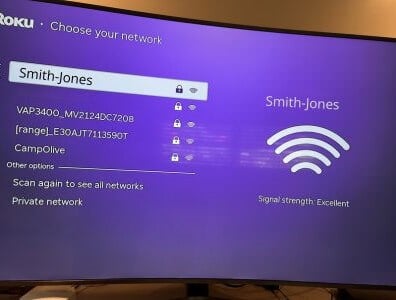
To connect to Wi-Fi:
- Choose your home Wi-Fi from the list that appears.
- Use the on-screen keyboard to type your Wi-Fi password.
- Press Connect or OK.
Give it a moment — once it says “Connected,” your TV can now stream YouTube and other apps.
???? Tip: If you don’t have Wi-Fi, you can run an Ethernet cable (the same kind your computer uses) directly from your router to your TV. It’s even more reliable.
Step 2: Open the YouTube App
- On the TV remote, press the Home or Smart Hub / Apps button.
- Scroll through your apps and look for YouTube.
- If you don’t see it, find App Store, Samsung Apps, or LG Content Store and search for YouTube.
- Select Install or Download.
- Once it’s installed, open YouTube. You can search for your favorite shows by using the remote to type in the letters.
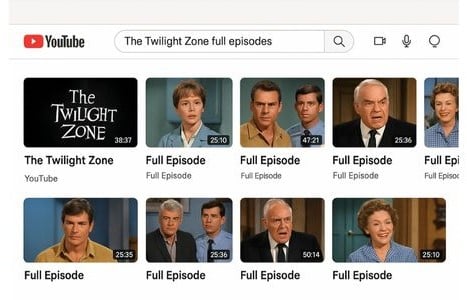
✔️ Pro Tip: If typing with the remote is hard, use your phone — open YouTube on your phone, tap the cast icon (a little TV with Wi-Fi lines), and choose your TV from the list. Your show will start playing instantly. If you want the simplest step-by-step version (with the exact buttons and what to look for), here’s my full guide to casting from a phone to a TV.
Step 3: Sign In (Optional but Helpful)
You don’t need to sign in to watch YouTube, but it helps you find your favorite shows more easily.
If you want to sign in:
- Open YouTube and go to the left-hand menu.
- Choose Sign In.
- You’ll see a code on your TV screen.
- On your phone or computer, go to youtube.com/activate.
- Enter that code and click Allow.
Now your YouTube account is linked to your TV — you’ll see your subscriptions, playlists, and watch history right there.
Step 4: Search for Your Favorite Classic Shows
You can now use the search bar or voice search (if your remote has a microphone button).
Try searching:
- “Classic TV Rewind Bonanza”
- “Bewitched full episodes”
- “Public domain classic TV”
- “The Lone Ranger official channel”
When you find a channel or playlist you like, select Subscribe so it’s easy to find next time.
Step 5: Adjust Picture and Sound for Older Shows
Old black-and-white shows sometimes look dark or sound muffled. You can fix that right from your TV’s Settings menu (not in YouTube itself).
How to open Settings:
- On your TV remote, look for a Settings, Menu, or Gear (⚙️) button and press it.
- If your remote doesn’t have one, press the Home button and scroll to Settings on the TV screen.
- Choose Picture → adjust Brightness, Contrast, or Sharpness until the image looks clearer.
- Go back and select Sound or Audio → open Equalizer → raise the Mid or High tones for clearer speech.
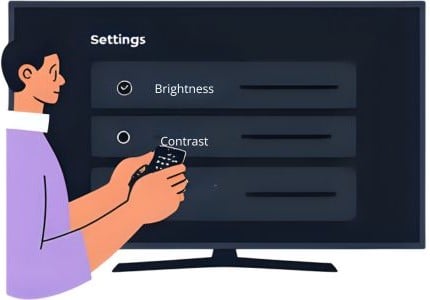
???? Every brand labels menus slightly differently — on Samsung it’s Settings → Picture → Expert Settings, on LG it’s All Settings → Picture, and on Roku TVs it’s Settings → TV Picture Settings.
Can’t Hear the Dialogue Clearly?
If voices are hard to hear, these quick fixes can improve dialogue clarity right away.
???? Fix TV voices that are hard to hear
???? Best soundbars for clearer dialogue
???? Best wireless TV headphones for clear dialogue
???? Why classic TV audio sounds different on modern TVs
If YouTube Doesn’t Load: Quick Fixes
If YouTube won’t open or you get a “Network Error”:
- Check your Wi-Fi again under Network Settings.
- Try unplugging your TV for 30 seconds and turning it back on.
- Restart your router (unplug for 15 seconds).
Once the internet reconnects, open YouTube again — it should work normally.
Pro Tip: If you find all of this too confusing, you can plug in a Roku Stick or Amazon Fire TV Stick instead — they make the process easier and have better remotes for searching. Be sure to check out our complete guide to installing and using a Roku Stick.
Both work great even on older TVs with an HDMI port.
Streaming YouTube with Roku, Fire Stick, or Apple TV
If your TV doesn’t already have YouTube built in, you can still watch your favorite classic shows using a small plug-in device called a streaming player. The most popular ones are the Roku Stick, Roku box, Amazon Fire TV Stick, and Apple TV.
???? If you’re deciding between the two most common options, I break down the real differences (remote, menus, search, cost, and ease-of-use) in a simple Roku vs Fire Stick guide.
All of these devices connect to your TV’s HDMI port and link to your Wi-Fi, giving you easy access to apps like YouTube, Pluto, and Tubi — no cable subscription needed.
If you’d like to go beyond YouTube, these two free apps are worth trying next:
- Install Tubi for Free Classic TV – Tubi lets you pick the exact shows and episodes you want, anytime you want. It’s completely free and packed with 1950s–60s favorites like Dragnet, The Rifleman, and The Lucy Show. If you want the easiest “get it installed and working” walkthrough, here’s the step-by-step guide to installing Tubi on any TV.
- How to Watch Classic TV on Pluto – Pluto TV works just like old-fashioned television, with 24/7 channels streaming I Love Lucy, Gunsmoke, and The Twilight Zone nonstop. If you like the “channel surfing” feel of classic TV, Pluto is the closest match—and this guide shows how to get it set up fast.
Both apps are easy to install and work on any smart TV, Roku, or Fire Stick.
Before You Start: Make Sure You’re on the Right HDMI Input
When you plug a streaming device like a Roku box, Roku Stick, or Fire TV Stick into your TV, it uses one of the HDMI ports — those small, rectangular slots usually found on the back or side of the screen.
Most TVs have two or three HDMI ports, and each one acts like a different “channel” for a device.
Here’s how to find the right one:
- Look where you plugged it in.
On the back or side of your TV, you’ll see small labels next to the HDMI ports — something like HDMI 1, HDMI 2, or ARC.
Make a note of the one your device is plugged into (for example, HDMI 2). - Turn on your TV with your regular TV remote (not the Roku or Fire remote yet).
- Press the Input or Source button on your TV remote.
You’ll see a list of input options pop up on your screen — HDMI 1, HDMI 2, AV, TV, etc. - Use the arrow buttons on your remote to highlight the HDMI port that matches where your Roku or Fire Stick is plugged in, then press OK or Enter.
After a few seconds, you should see the Roku, Fire TV, or Apple TV welcome screen appear.
???? Tip: If you see a blank screen, black screen, or “No Signal” message — you’re probably just on the wrong HDMI input. Try another one until the device screen appears.
How Roku Devices Work (Stick or Box)
Roku makes two main versions:
- A Roku Streaming Stick, which plugs directly into the HDMI port on the back of your TV (it’s about the size of a thumb drive).
- A Roku box (like the Roku Ultra or Express), which sits next to your TV and connects with an HDMI cable.
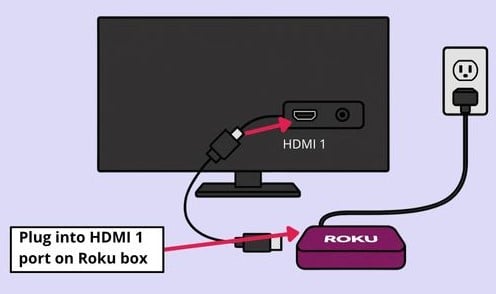
Both work the same way once they’re set up:
- Turn on your TV and choose the correct HDMI input. If your roku box says HDMI 1 for example, make sure the cable is connected to HDMI 1 on your TV as well.
- Follow the simple on-screen steps to connect to your home Wi-Fi.
- On the Roku menu, scroll to “Add Channel” and look for YouTube (it’s usually preinstalled).
- Open the YouTube app, and you’re ready to start watching.
The Roku remote is easy to use and often even has a YouTube button — just press it to open the app instantly.
How Fire TV Sticks Work
Amazon’s Fire TV Stick works almost exactly the same way. Plug it into an HDMI port, power it up, and follow the steps on screen to connect to Wi-Fi. Every Amazon Fire TV Stick comes with its own remote right in the box.
???? About the Remote: All Fire TV Sticks include a remote with built-in Alexa voice control, even the basic model. That means you can hold down the microphone button on the remote and say things like:
“Alexa, open YouTube.”
“Alexa, play Bonanza on YouTube.”
“Alexa, turn up the volume.”
So Alexa is already part of the remote — you don’t need to buy an Alexa speaker or Echo device.
How Apple TV Works (and Why It’s Similar)
Apple TV is a small box (not a stick) that plugs into your TV’s HDMI port. It uses the same kind of remote and menu style as an iPhone or iPad, so Apple users usually find it very familiar.
To get YouTube, just open the App Store on the Apple TV, search for YouTube, and install it. Once it’s there, you can sign in or just start watching.
If you have an iPhone or iPad, you can even “AirPlay” videos from your phone directly to your TV — tap the AirPlay icon while watching a video, and it’ll appear on the big screen.
Did You Know You Can Use a Streaming Device on a Smart TV?
Even if your TV already has YouTube built in, you can still use a Roku, Fire Stick, or Apple TV to make things easier. Many Smart TVs come with confusing menus or outdated software that can make YouTube run slowly or stop working.
A streaming device gives you a simple, consistent setup that works the same on any TV — smart or not. You’ll get:
- Faster loading times
- Easier-to-read menus
- Regular app updates
- Voice search features that save a lot of typing
Tip: A Roku Stick or Fire TV Stick will work on any TV that has an HDMI port — even older Smart TVs. It’s an easy, affordable way to make streaming smoother and simpler.
If you also want free live TV channels alongside YouTube, here’s how to get free channels with an antenna — many people use both together.
Watching YouTube on Older TVs with HDMI Adapters
Watching YouTube on Older TVs Without HDMI
If your TV does not have an HDMI port, you can still watch YouTube using a streaming device and a simple HDMI-to-RCA converter.
What you need:
- Roku Stick or Fire TV Stick
- HDMI-to-RCA converter
- Red, white, and yellow cables
How it works:
- Plug the Roku or Fire Stick into the converter
- Connect the red, white, and yellow cables to your TV
- Switch your TV to the AV input
- Follow the on-screen setup
If you want the full step-by-step with pictures, follow this guide to watch YouTube on an old TV.
How to Find Full Episodes of Classic TV on YouTube
To find full classic TV episodes on YouTube, search using the show name plus “full episodes” or “official channel.” For example:
- “Bonanza full episodes”
- “Dragnet official channel”
Then choose verified channels or well-known distributors to avoid incomplete or low-quality videos.
Best Classic TV Channels on YouTube
Here are some of the top YouTube channels where you’ll find classic shows, restored footage, and full episodes free to watch:
Classic TV Rewind
What it is: A major classic-TV channel—check for the verification badge and studio branding.
What you’ll find: Full episodes of Bewitched, I Dream of Jeannie, The Partridge Family, The Jeffersons, and more.
Why it’s great: High-quality video, official uploads, and updated playlists every month.
Shout! Factory TV
What it is: A well-known entertainment company that brings classic and cult TV online.
What you’ll find: The Carol Burnett Show, Mystery Science Theater 3000, Alfred Hitchcock Presents, and other full series.
Why it’s great: Professionally restored shows and themed playlists that make binge-watching easy.
Public Domain TV
What it is: A YouTube channel dedicated to shows that are free and legal to share.
What you’ll find: High-quality uploads of 1950s dramas, westerns, and early sitcoms like The Adventures of Robin Hood and The Lone Ranger.
Why it’s great: Lots of older uploads—just use the quality/safety checks below.
Timeless Television
What it is: A curated channel featuring beloved vintage favorites.
What you’ll find: Dragnet, Lassie, The Adventures of Ozzie and Harriet, The Jack Benny Program, and more.
Why it’s great: Family-friendly, easy to browse, and full of nostalgia.
???? Pro Tip: To find these channels quickly, open YouTube and search their names exactly as shown — or use voice search on your Roku or Fire Stick remote (for example, “Search Classic TV Rewind on YouTube”).
How to Find High-Quality Classic TV Channels on YouTube
Here’s how to find reliable, high-quality channels so you don’t waste time on blurry, chopped-up uploads:
✅ Stick with well-known channels like Classic TV Rewind or Shout! Factory TV.
✅ Look for the checkmark next to a channel name — that means it’s verified by YouTube.
✅ Check the video quality. Official uploads are clear and bright, not grainy or distorted.
✅ Avoid random re-uploads with strange titles or missing endings — they’re often low-quality.
If you stick to verified channels and recognizable distributors, you’ll avoid most low-quality or questionable uploads—and get clearer video and complete episodes.
Tips for a Better Viewing Experience on YouTube
Adjusting Quality, Subtitles, and Full-Screen Mode
Click the gear icon (⚙️) on your YouTube video to adjust video quality and turn on captions — perfect for older black-and-white shows with fuzzy audio.
If sound is hard to hear on older shows, this guide on how to make TV voices louder and clearer can help in just a few minutes.
Using Playlists and “Watch Later” to Organize Shows
You can save episodes to “Watch Later” or create your own playlist — for example, “My Saturday Night Classics.”
Pairing YouTube with Roku or Fire TV Remote Apps
Install the Roku or Fire TV app on your phone to make typing and searching easier. Voice search also works great: just say, “Play Bonanza on YouTube.”
When YouTube Is the Best Option for Classic TV
YouTube works best when:
- You want free, on-demand episodes
- You don’t want to install new apps
- You’re searching for specific shows
You may prefer apps like Pluto or Tubi when:
- You want live channels
- You prefer a TV-like experience
- You don’t want to search manually
Frequently Asked Questions
Can you watch full classic TV shows for free on YouTube?
Yes. Many official channels upload full episodes of older TV shows. Some are free with ads, while others are free through classic TV channels on YouTube.
Do I need an account to watch YouTube on my TV?
No, you don’t. You can watch YouTube without logging in — just open the app and start browsing. However, signing in makes it easier to save your favorite channels, subscribe, and pick up where you left off later.
Can I watch YouTube on an older TV?
Absolutely. You just need a Roku Stick, Fire TV Stick, or an HDMI-to-RCA converter if your TV only has the old red, white, and yellow cable ports. Once connected, you can enjoy your favorite shows right on the big screen.
How do I know if a channel is safe to watch?
Stick with verified channels and well-known distributors (they’re more likely to post complete, high-quality episodes). Avoid random re-uploads with chopped endings or strange titles—those are often low-quality and may be removed.
Are there commercials on YouTube?
Yes — but they’re short and familiar, just like the old commercial breaks from classic TV. Most ads can be skipped after a few seconds, and the trade-off is getting your favorite shows for free.
What’s the best way to find a specific show?
Type the show’s exact name and add “full episodes” or “official.”
For example: Bewitched full episodes official or Bonanza official channel.
This helps YouTube find legitimate, higher-quality uploads faster.
Want more ways to watch classic TV for free?
Once you’ve explored YouTube, take the next step with my easy setup guides:
???? Watch Classic TV on Tubi – on-demand viewing at your own pace on any TV, smartphone or tablet.
???? Watch Classic TV on Pluto – live channels that play your favorites 24 hours a day.
These guides walk you through installation and tips for making each app easy to use on your TV.
And for more classic TV options, try one of my favorites — The Internet Archive.
It’s a free online library where you can stream or download thousands of 1960s and 1970s shows, and it’s one of my favorites.
If you want to watch Internet Archive shows on the big screen (not just on a computer), here’s the easiest setup for Roku, Fire Stick, and Smart TVs.
Wrap Up
If you grew up watching the golden age of television, YouTube is your ticket back in time. Whether it’s Lucy, Andy Griffith, or The Lone Ranger, these classics are only a click away — and with a Roku or Fire Stick, you can enjoy them right on your living room TV.
So grab your remote, pour a cup of coffee, and rediscover the shows that made America laugh, cry, and gather around the screen.
If you’d like a simple, big-picture guide that covers all your free streaming options — from YouTube to Pluto and Tubi — start with Watch Old TV Shows for Free Starting Tonight!
It explains everything step-by-step, including how to set up your TV, find the best apps, and start streaming tonight — no tech skills needed.
???? Pro Tip: Bookmark this article — I’ll keep updating it as new YouTube classic TV channels appear. For more free ways to find and watch old shows, see my Start Watching Classic TV guide.
Sources & Verification
We prioritize linking to official studio channels and verified distributors. Always look for the verification checkmark (✓) to ensure you are watching legal, high-quality uploads.
???? YouTube – Verified Channels
Learn how to identify official channels from studios and rights holders using the verification badge.
⚖️ YouTube – Copyright & Fair Use
Understand how YouTube manages rights and why some classic shows are legally available for free.
???? YouTube – Movies & TV Primetime Channels
Official information on watching free, ad-supported movies and shows directly from YouTube.
???? U.S. Copyright Office – Public Domain
Explains why many shows from the 1950s and 60s are now in the public domain and free to share.