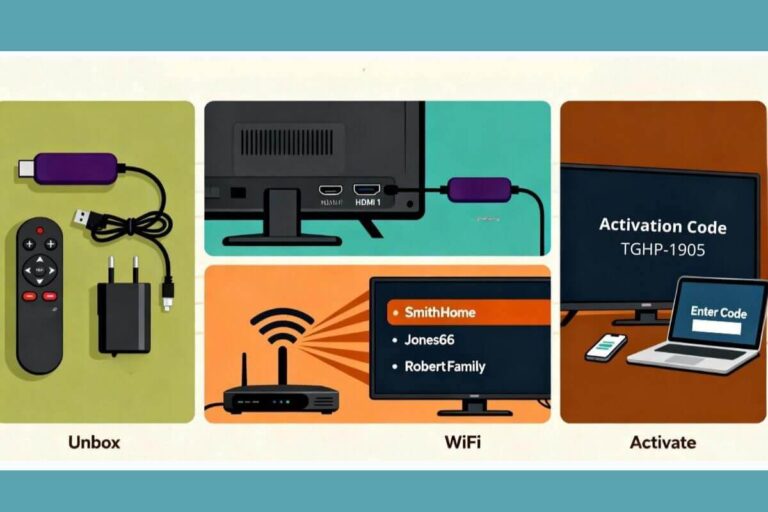
Why Does Pluto TV Keep Freezing? Easy Fixes That Work
Pluto TV can freeze because of a weak internet connection, an app problem, outdated software, or trouble with a Pluto TV channel.
Start here: Try a different Pluto TV channel. Then open another streaming app, such as YouTube or Tubi.
- Only one Pluto channel freezes? Watch another channel and try again later.
- Several Pluto channels freeze, but other apps work? Close and reopen Pluto TV. If needed, restart your TV or streaming device.
- Other apps freeze too? Check your internet connection before deleting Pluto TV.
If it still freezes, follow the steps below for your Roku, Fire TV, Samsung, LG, or Apple TV.
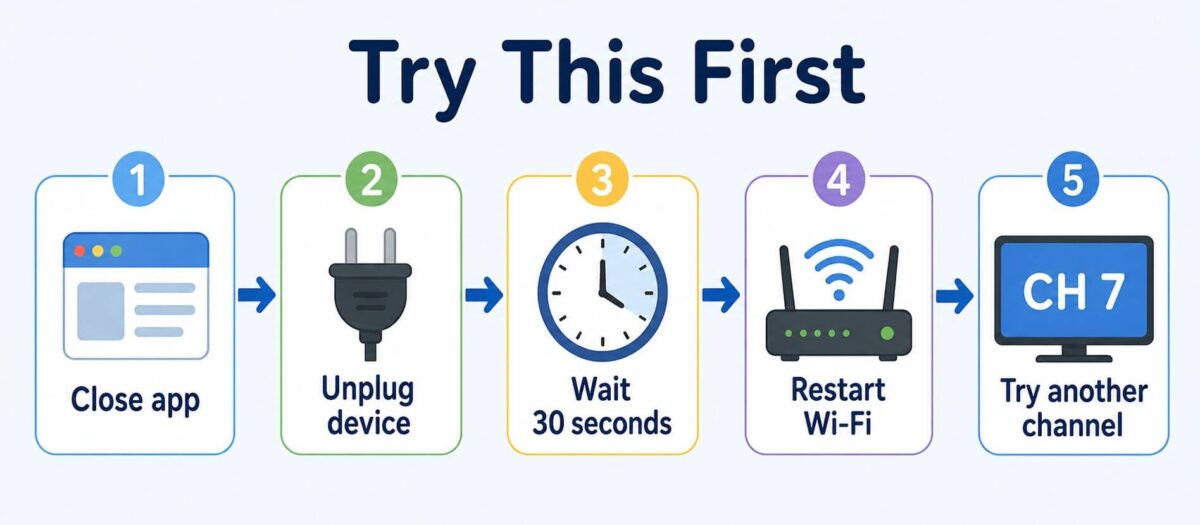
What to Do If Pluto TV Will Not Load
If Pluto TV will not load at all, the app may be stuck before the channel even starts. This is slightly different from freezing during a show.
Try this:
- Close Pluto TV completely.
- Restart your TV, Roku, Fire TV, or streaming device.
- Open a different app, like YouTube or Tubi.
- If other apps load, reopen Pluto TV.
- If Pluto TV still will not load, update the app.
- If it still does not work, delete and reinstall Pluto TV.
If no streaming apps load, the problem is probably your Wi-Fi or internet connection. If only Pluto TV will not load, the problem is probably the Pluto TV app or Pluto TV service.
Why Pluto TV Keeps Freezing
Pluto TV is a free streaming app. It plays live channels and on-demand shows through the internet.
That means it needs a steady connection. If the internet slows down, the app may freeze, buffer, stop, or show a black screen.
Pluto TV works best with an internet speed of at least 5 Mbps. If your connection tests lower than that, freezing and buffering become much more likely.
Pluto TV may also freeze if your TV or streaming stick is tired, full, or running an old version of the app.
The most common causes are:
- Your Wi-Fi signal is weak
- The app has old stored data
- Pluto TV needs an update
- Your Roku, Fire TV, or smart TV needs a restart
- Pluto TV is having a temporary problem
If you are still learning how Pluto TV works, start with my beginner guide on how to get Pluto TV for free on any device.
Fix Pluto TV Freezing on Roku
If Pluto TV keeps freezing on Roku, start with a Roku restart. This clears small errors without deleting your apps.
Step 1: Restart Roku
Go to Settings → System → Power → System Restart → Restart.
Don’t see “Power”? Go to Settings → System → System Restart → Restart instead.
Once Roku restarts, open Pluto TV and try playing a channel.
Step 2: Check your Roku internet connection
Go to Settings → Network → Check Connection. If the signal is weak, move the Roku closer to your router if possible.
You can also try:
- Restarting your router
- Moving the router higher
- Moving the Roku away from the back of the TV
- Using a Roku with a stronger Wi-Fi connection
Step 3: Remove and reinstall Pluto TV
If Pluto TV is the only app freezing, reinstall it.
Go to the Pluto TV app on your Roku home screen, then
- Highlight Pluto TV.
- Press the star button
*on your Roku remote. - Choose Remove channel.
- Restart Roku.
- Add Pluto TV again from the Roku Channel Store.
This gives the Pluto TV app a fresh start.
If your Roku remote is also giving you trouble, use my guide to fix a Roku remote that is not working before you reinstall the app.
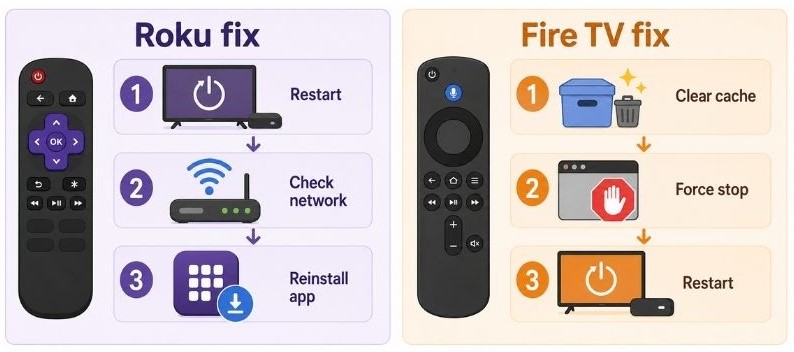
Fix Pluto TV Freezing on Fire TV or Firestick
If Pluto TV keeps freezing on a Fire TV or Firestick, the app may need its cache cleared. The cache is just stored app data. Sometimes it gets messy and slows things down.
Step 1: Clear Pluto TV cache
Go to Settings → Applications → Manage Installed Applications → Pluto TV → Clear Cache
Then open Pluto TV again.
Step 2: Force stop Pluto TV
If it still freezes, go back to Settings → Applications → Manage Installed Applications → Pluto TV. Choose Force Stop, then reopen Pluto TV.
Step 3: Restart your Fire TV
Go to Settings → My Fire TV → Restart. You can also unplug the Firestick from power, wait 30 seconds, and plug it back in.
Step 4: Reinstall Pluto TV
If Pluto TV still freezes:
- Go to Settings.
- Choose Applications.
- Choose Manage Installed Applications.
- Choose Pluto TV.
- Choose Uninstall.
- Restart your Fire TV.
- Install Pluto TV again.
If you are still getting comfortable with your Firestick, my beginner guide to setting up a Fire TV Stick walks through the basic menus step by step.
Fix Pluto TV Freezing on Samsung TV
If Pluto TV freezes on a Samsung smart TV, the TV may need a restart or the Pluto TV app may need an update.
Step 1: Restart the TV
- Turn the TV off.
- Then unplug it from the wall for 30 seconds.
- Plug it back in and open Pluto TV again.
Step 2: Turn on automatic app updates
- Press Home on your Samsung remote.
- Open Apps.
- Select App Settings. On some models, look for the Settings gear within Apps.
- Set Auto Update to On.
This lets your TV install app updates when they are available. Keep the TV connected to the internet. Turning this on does not mean Pluto TV updates right away.
Step 3: Reinstall Pluto TV
- Press Home and open Apps.
- Open App Settings or the Settings gear.
- Select Pluto TV.
- If Reinstall appears, select it.
- If you only see Delete, delete the app. Then search for Pluto TV in Apps and install it again.
If Delete is grayed out, the app may be preinstalled. Look for Reinstall instead. Menu names vary by TV model.
Step 4: Check if other apps freeze too
- Open another streaming app, like Tubi or YouTube.
- If those apps freeze too, Pluto TV may not be the problem. Your TV may have weak Wi-Fi or may need a full software update.
Fix Pluto TV Freezing on LG TV
If Pluto TV keeps freezing on an LG smart TV, start with a full TV restart.
Step 1: Power restart the TV
- Turn the LG TV off.
- Unplug it from the wall.
- Wait 30 seconds.
- Plug it back in.
- Open Pluto TV again.
Step 2: Check for updates
First, check for a TV software update:
- Press Settings on your LG remote.
- Open All Settings → Support → Software Update.
- Select Check for Updates.
- Follow the screen prompts. Do not unplug the TV while it updates.
On older LG TVs: Try All Settings → General → About This TV → Check for Updates.
Then check Pluto TV: Press Home, open Apps or LG Content Store, and find Pluto TV. If an Update button appears, select it. Menu names vary by TV model.
Step 3: Delete and reinstall Pluto TV
If Pluto TV still freezes:
- Delete the Pluto TV app.
- Restart the TV.
- Reinstall Pluto TV.
- Try a different Pluto TV channel.
If Pluto TV freezes on one channel but not others, the problem may be that live channel. If all apps freeze, your TV may be too far from the router.
Fix Pluto TV Freezing on Apple TV
If Pluto TV keeps freezing on an Apple TV, start by force closing the app. This clears out small glitches without restarting the whole device.
Step 1: Force close Pluto TV
Double-click the Home button on your Siri Remote. This brings up a row of open apps. Slide up on Pluto TV to close it, then open Pluto TV again from your home screen.
Step 2: Check for a tvOS update
Go to Settings → System → Software Updates → Update Software.
If an update is available, select Download and Install. Keep your Apple TV plugged in until the update finishes. Then open Pluto TV and try it again.
Step 3: Restart your Apple TV
Go to Settings → System → Restart. This clears out small errors without deleting any of your apps.
Step 4: Reinstall Pluto TV
If Pluto TV still freezes, delete the app from your Apple TV, then download it again from the App Store.
What to Do If Pluto TV Freezes During Commercials
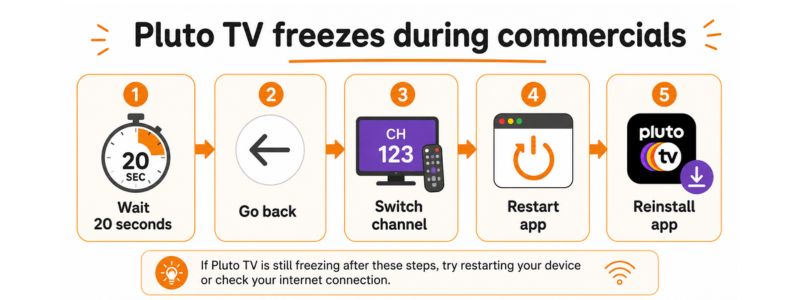
Sometimes Pluto TV works fine during the show, then freezes during ads.
That can happen because Pluto TV is free and ad-supported. The app has to load the show and the commercial breaks. If the ad does not load correctly, the screen may freeze.
Try this:
- Wait 20 seconds.
- Press Back.
- Choose the channel again.
- Switch to another Pluto TV channel.
- Close and reopen the app.
If Pluto TV freezes on commercials every time, restart your device. If that does not work, remove and reinstall Pluto TV.
This problem is annoying, but it does not always mean your TV is broken. Many times, it is just the ad break failing to load.
What to Do If Pluto TV Shows a Black Screen
A black screen can look scary, but it is often easy to fix. First, check if you still hear sound.
If you hear sound but see no picture
- Press Back.
- Reopen the channel.
- Restart Pluto TV.
- Restart your TV or streaming device.
- Check your HDMI cable if you use a Roku Stick or Firestick.
If there is no sound and no picture
Do this:
- Open another app.
- Restart your device.
- Restart your router.
- Reinstall Pluto TV.
- If every app shows a black screen, the issue may be your TV, HDMI port, or streaming device.
- If only Pluto TV shows a black screen, the Pluto TV app is probably the issue.
If you are using Pluto TV through a streaming stick on an older television, this guide on how to stream on a non-smart TV may help you check the setup.
When the Problem Is Pluto TV, Not Your Device
Sometimes Pluto TV freezes because Pluto TV itself is having trouble.
That can happen when:
- Many people are watching at once
- A channel has a temporary problem
- The Pluto TV app has a bug
- A live stream fails
- Your device app version is not working well
Here is the simple test:
- Open another free streaming app. Try Tubi, YouTube, or The Roku Channel.
- If those apps work fine, your internet is probably okay.
- If Pluto TV is the only app freezing, wait a little while and try again later. You can also reinstall the Pluto TV app.
If Pluto TV keeps acting up, you can also try one of these easy streaming apps for smart TVs while you troubleshoot.
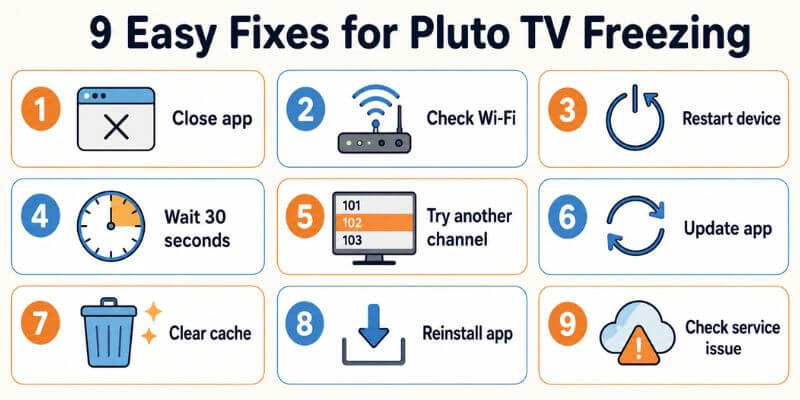
Quick Checklist: 9 Easy Fixes for Pluto TV Freezing
Use this list in order.
- Close and reopen Pluto TV.
- Try a different Pluto TV channel.
- Restart your TV or streaming device.
- Restart your Wi-Fi router.
- Move closer to the router if possible.
- Update Pluto TV.
- Update your Roku, Fire TV, or smart TV.
- Clear the Pluto TV cache if your device allows it.
- Remove and reinstall Pluto TV.
Frequently Asked Questions
Why does Pluto TV keep freezing?
Pluto TV usually keeps freezing because of weak Wi-Fi, an outdated app, a slow streaming device, or a temporary Pluto TV problem. Start by restarting your TV or streaming device, then reopen Pluto TV.
Why won’t Pluto TV load?
Pluto TV may not load because the app is stuck, your internet connection is weak, the app needs an update, or Pluto TV is having a temporary service problem. Restart your device first, then update or delete then reinstall the Pluto TV app if needed.
Why does Pluto TV keep buffering?
Pluto TV buffers when the video cannot load fast enough. This can happen if your internet is slow, your Wi-Fi signal is weak, or too many devices are using the internet at the same time.
Why does Pluto TV freeze during commercials?
Pluto TV is free because it shows ads. Sometimes the show loads fine, but the ad break does not. If Pluto TV freezes during commercials, close the app, reopen it, and try the channel again.
Why is Pluto TV not working on Roku?
If Pluto TV is not working on Roku, restart the Roku first. Then check your network connection. If Pluto TV still freezes, remove the Pluto TV channel and add it again.
Should I delete Pluto TV and reinstall it?
Yes, if restarting does not fix the problem. Reinstalling Pluto TV gives the app a fresh start and can fix freezing, black screens, and app errors.
Wrap Up
If Pluto TV keeps freezing, do not panic and do not replace your TV yet.
Start simple:
- Restart the app.
- Restart the TV or streaming device.
- Check Wi-Fi.
- Update Pluto TV.
- Reinstall the app if needed.
Most Pluto TV freezing problems are small app or connection problems. Once you clear them out, Pluto TV should play smoothly again.
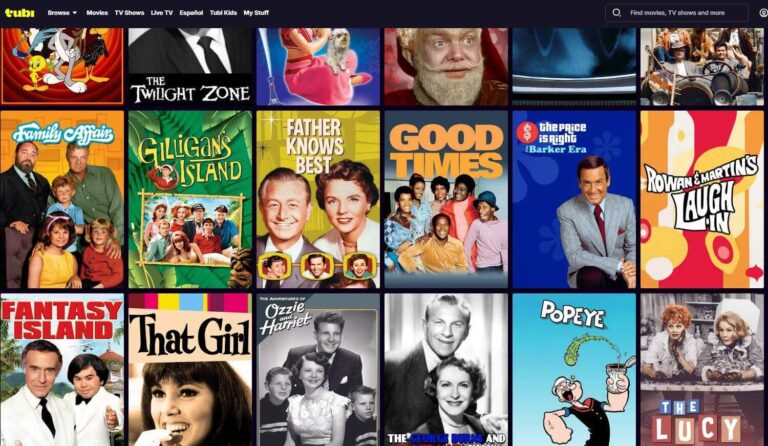
And if Pluto TV keeps giving you trouble, my guide to free streaming options for classic shows, movies, and live channels gives you more places to watch.