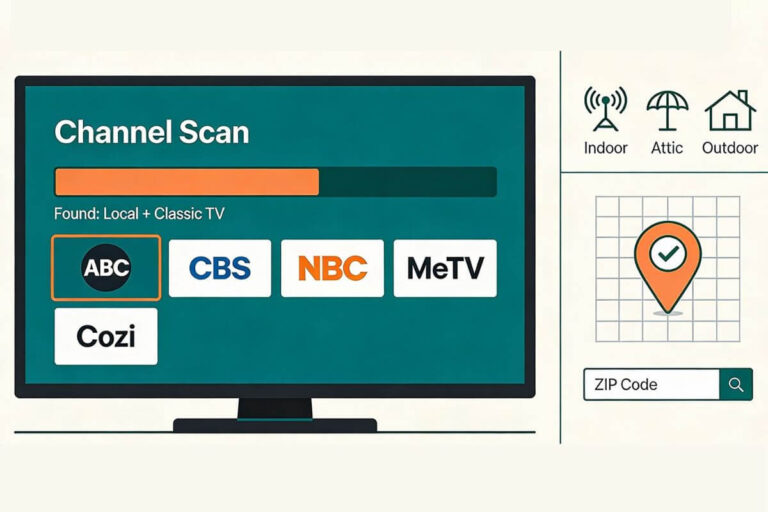
How to Rescan TV Antenna Channels (Fix Missing Channels)
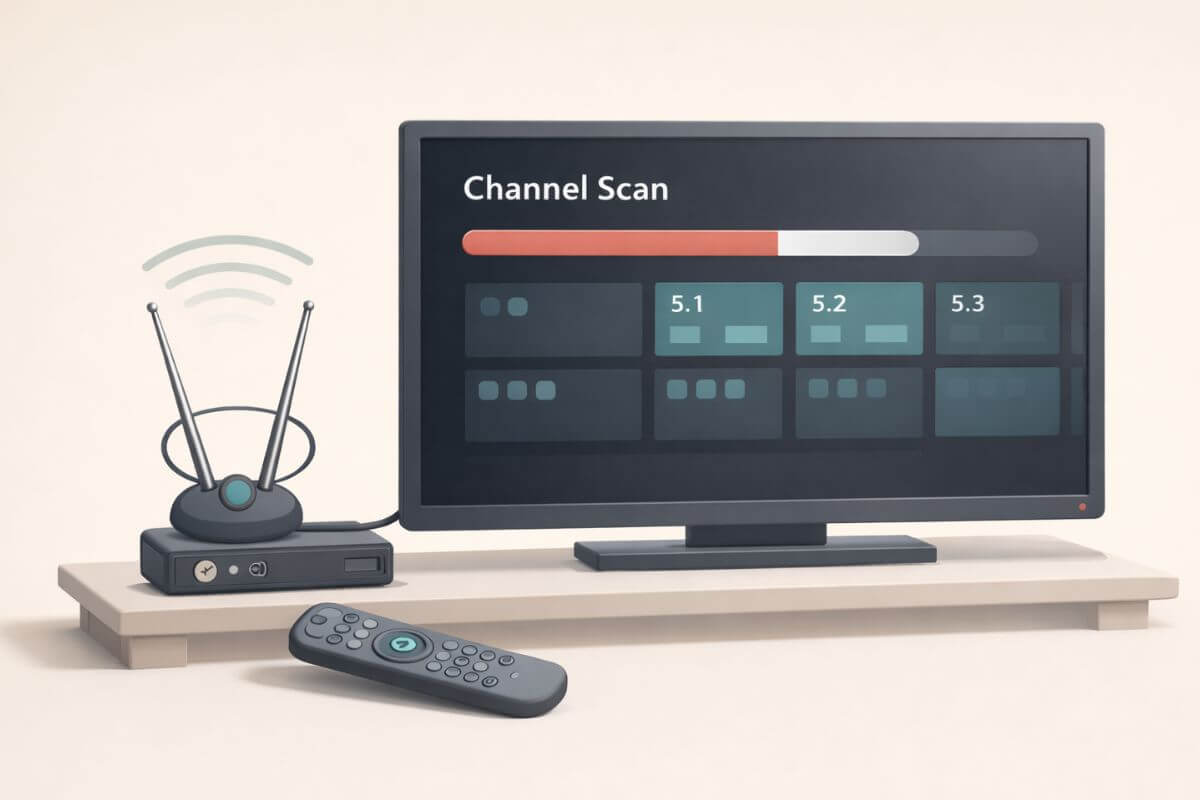
If your antenna TV suddenly lost channels, the first thing to try is a channel rescan.
Many people don’t realize that TVs store a list of available stations. When broadcast signals change — or when you move your antenna — your TV may still be using an old channel list.
Running a quick antenna channel scan forces the TV to search again for available stations. Most TVs find antenna channels using a feature called Channel Scan, sometimes labeled Auto Program or Auto Tuning. In many cases, this restores missing channels in just a few minutes.
If your channels disappeared recently, it may be because of signal changes, storms, or antenna placement. This guide explains how to rescan TV antenna channels, step-by-step.
If you’re not sure why your channels disappeared in the first place, see my guide explaining why TV antenna channels suddenly disappear.
And if rescanning does not fix the issue, my troubleshooting guide on how to get missing TV channels back walks through the most common causes.
Fast Fix: How to Rescan Antenna Channels
If your antenna channels disappeared, a quick channel scan usually restores them.
- Press Settings on your TV remote.
- Select Channels, Broadcast, or TV Settings.
- Choose Channel Scan, Auto Program, or Auto Tuning.
- Select Antenna / Air as the signal source.
- Start the scan and wait until it reaches 100%.
Your TV will automatically save any channels it finds.
Before You Rescan Your TV Channels
Before you start the channel scan, make sure your antenna is connected correctly and your TV is set to the right source.
Here’s what to check first:
1. Make sure the antenna is plugged in securely
Check that the coax cable is firmly connected to the ANT IN, RF IN, or CABLE/ANTENNA port on the back of the TV.
2. Make sure the TV is set to Antenna or Air mode
In the TV menu, look for Input, Channels, or Tuner Mode.
Your TV should be set to Antenna, Air, or Broadcast — not Cable.
3. Put the antenna in a good position before scanning
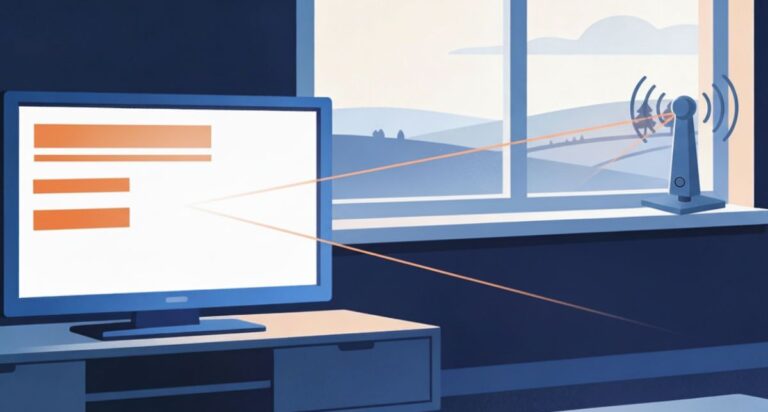
If you scan while the antenna is in a poor spot, the TV may miss channels. Place it near a window or higher on the wall if possible.
If you need help with placement, see my guide on how to set up an indoor TV antenna.
4. Keep the antenna still during the scan
Once the scan starts, do not move the antenna. Let the TV finish searching first.
5. Be ready to rescan again after moving the antenna
If you move the antenna later to improve reception, run the scan again so the TV can update the channel list.
When You Need to Rescan Antenna Channels
Your TV stores a list of available stations after the first channel scan. If the signal changes or the antenna moves, that stored list may no longer be accurate.
Running a TV antenna channel scan allows the TV to search again and update the channel list.
You may need to rescan antenna channels if:
• your TV suddenly loses some local stations
• you moved or adjusted the antenna
• you connected a new antenna
• your area had storms or signal disruptions
• a local station changed broadcast frequency
In many cases, a quick antenna channel rescan restores the missing channels within a few minutes.
Your antenna notes and quick fixes, all in one place.
Get the Free TV Antenna Troubleshooting Checklist
A 4-page fill-in guide to keep near your TV.
Fill it in once. Use it when a channel disappears, the picture breaks up, or you need to fix your antenna again.
- Write down your must-have channels, tower direction, and antenna setup
- Follow the quick fixes when a channel goes missing or the picture freezes
- Find and record your best antenna spot so you do not have to start over
- Know when to rescan — and when not to rescan
- Keep the questions to ask an antenna pro before paying for new parts

Hi, I’m Kathy — I’ve helped thousands of readers ditch cable and get their local channels working for good.
How to Rescan Channels on a Smart TV
Most smart TVs include a feature called Channel Scan, Auto Program, or Auto Tuning. This allows the TV to search again for available antenna channels and update the channel list.
The exact menu names vary slightly by brand, but the steps are very similar.
Step 1: Open the TV Settings Menu
Press the Menu or Settings button on your TV remote.
On most smart TVs, this opens the main settings screen.
Look for a section called:
- Channels
- Broadcast
- Tuner
- TV Settings
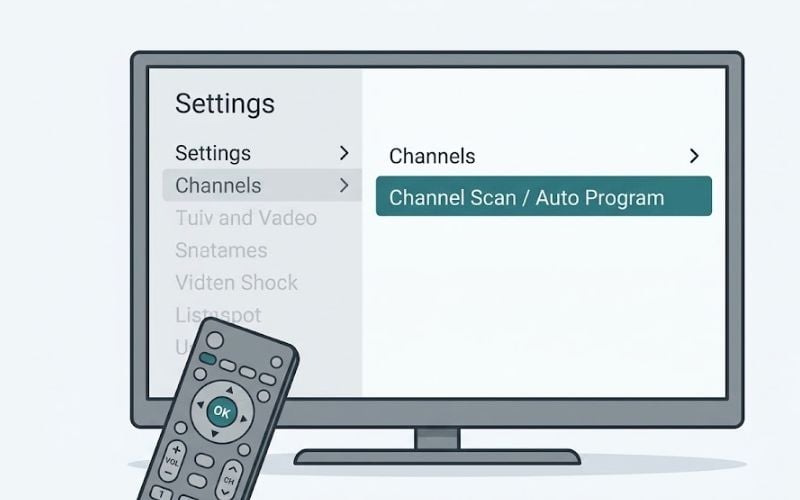
Step 2: Find the Channel Scan Option
Inside the Channels or Broadcast menu, look for one of these options:
- Channel Scan
- Auto Program
- Auto Tuning
- Scan for Channels
These all mean the same thing — the TV will search for available antenna stations.
Step 3: Select “Antenna” or “Air”
Before starting the scan, the TV will usually ask which signal source you want to search.
Choose:
Antenna
or
Air
Do not choose Cable. If Cable is selected, the TV will search the wrong frequencies and may find no channels.
Step 4: Start the Channel Scan
Select Start Scan or Start Auto Program.
Your TV will now search for available broadcast stations.
The scan usually takes 3–10 minutes. During this time the TV will detect channels and add them to the channel list.
Do not move the antenna while the scan is running.
Step 5: Save the Channel List
When the scan finishes, the TV will automatically save the channels it found.
You should now see your available local stations such as ABC, CBS, NBC, FOX, and PBS.
If some channels are still missing, try adjusting the antenna position slightly and run the channel scan again.
If rescanning does not restore the channels, the problem is usually related to antenna placement, signal strength, or interference. My guide on how to get missing TV channels back explains the most common fixes.
Can You Rescan Channels on Older TVs?
It depends on when the TV was made.
In the United States, television broadcasting switched from analog to digital in 2009. Because of that change, older TVs handle antenna channels differently.
TVs Made After 2007
Most TVs made after 2007 include a digital tuner (ATSC) built into the television.
These TVs can receive modern broadcast channels directly from an antenna and can run a channel scan just like a smart TV.
To rescan channels on these TVs:
- Press Menu on the remote
- Go to Channels, Broadcast, or Tuner
- Select Auto Program, Auto Tuning, or Channel Scan
- Choose Antenna or Air
- Start the scan and wait for the TV to find channels
The TV will automatically store the stations it finds.
TVs Made Before 2007 (Most Tube TVs)
Most tube TVs and early flat TVs were built before digital broadcasting.
These TVs cannot tune modern antenna channels directly, so they cannot run a true digital channel scan.
To use an antenna with these TVs, you need a small device called a digital converter box.
The converter box receives digital broadcast signals and sends a picture to the TV.
Once a converter box is connected:
- Connect the antenna to the converter box (ANT IN)
- Connect the converter box to the TV using coax or RCA cables
- Use the converter box remote to run the channel scan
In this setup, the converter box performs the scan, not the TV.
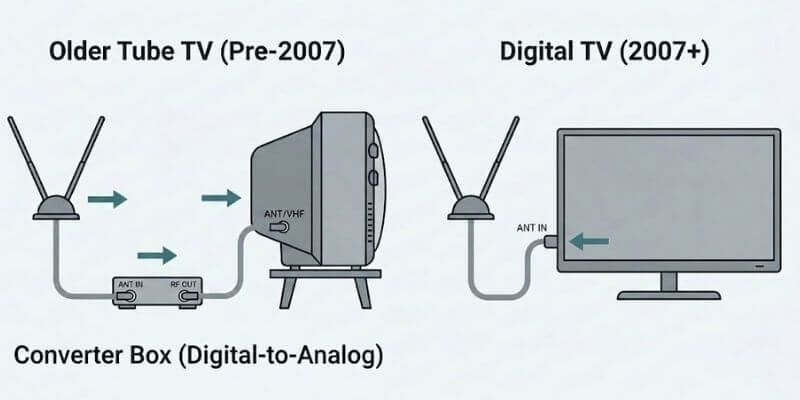
If you are unsure whether your TV needs a converter box, see my guide explaining when older TVs need a digital converter box for antenna channels.
What to Do If a Channel Scan Finds No Channels
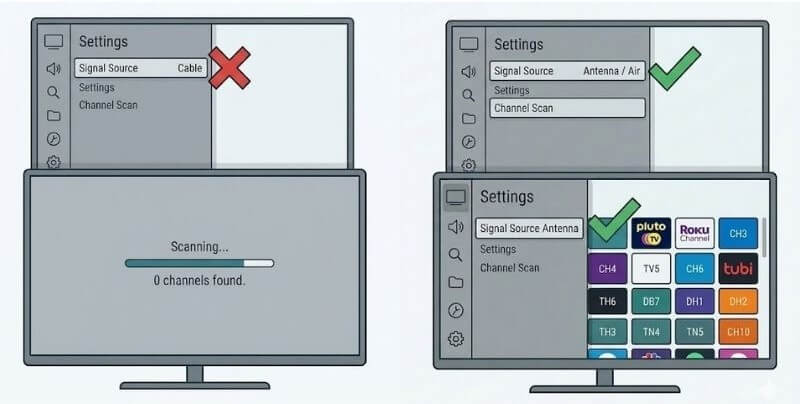
If your TV finishes scanning and finds zero channels, the problem is usually simple. Most of the time the TV is not set to the correct input, the antenna connection is loose, or the signal is too weak where the antenna sits.
Check these common causes first.
1. Make sure the TV is set to Antenna or Air
Many TVs have two scan modes: Cable and Antenna (sometimes called Air).
If the TV is set to Cable, it will not find antenna channels.
Go to:
Settings → Channels → Signal Source
Select Antenna / Air, then run the scan again.
2. Check the antenna cable
Make sure the coax cable is firmly connected to the ANT IN port on the back of the TV or converter box. A loose cable can cause the scan to return zero channels.
3. Move the antenna
Indoor antennas often work best:
• Near a window
• Higher on a wall
• Away from metal objects or large electronics
After moving the antenna, run another scan.
If you are unsure how to position it, my guide on how to aim a TV antenna for best reception walks through the easiest placement tips.
4. Your signal may be weak in that spot
Some homes simply sit in weaker signal areas, especially if hills, trees, or large buildings block broadcast towers.
If you previously had channels but they disappeared, read why TV antenna channels suddenly disappear for the most common causes and fixes.
How Long a Channel Scan Takes
Most TVs finish a channel scan in 3 to 10 minutes.
The exact time depends on the TV model and how many broadcast towers are in your area.
During the scan, the TV checks every possible broadcast frequency and saves any channels it finds.
Typical scan behavior:
• The TV shows a progress bar moving from 0% to 100%
• Channels appear one by one as they are found
• The TV automatically saves the channels at the end
Do not stop the scan early. If you exit before it finishes, some channels may not be saved.
After the scan completes, the TV switches to the first available channel.
If your scan finishes but no channels appear, review the steps in What to Do If a Channel Scan Finds No Channels above.
Do You Lose Channels When You Rescan?
No. Running a channel scan does not delete working channels.
A scan simply tells your TV to search again for available broadcast signals and update the channel list.
During the scan, the TV:
• Checks all broadcast frequencies
• Saves any channels it finds
• Updates the channel lineup stored in the TV
If a station has changed frequency or signal strength, rescanning allows your TV to find it again.
In some cases, rescanning may also add new channels that recently started broadcasting in your area.
However, if a station has stopped broadcasting or the signal is now too weak, it may disappear from the channel list until reception improves.
Why Some Channels Appear Twice After a Scan
After a channel scan, you may notice two versions of the same channel in your channel list.
This happens because many broadcast stations transmit multiple subchannels.
Example:
• 5.1 – Main network channel
• 5.2 – Classic TV network
• 5.3 – Weather or local programming
These are called subchannels. They all come from the same broadcast tower but carry different programming.
Your TV saves each one separately during the scan.
One of those extra channels may be Great Entertainment Television, formerly getTV, which uses a different channel number depending on your local station.
Sometimes you may also see the same network from two different towers if you live between broadcast markets. One version may appear stronger than the other.
If duplicates appear, simply watch the channel with the clearest signal.
Why TV Channels Sometimes Require a Rescan
TV stations occasionally change broadcast frequencies. When that happens, your TV may stop receiving the channel until you run another scan.
A channel scan refreshes the list of available broadcast signals and allows your TV to detect the station’s new frequency.
The Federal Communications Commission explains why viewers sometimes need to rescan for channels after these updates.
Stations may change frequencies because of:
• federal spectrum updates
• tower maintenance or equipment upgrades
• signal interference adjustments
Rescanning simply helps your TV find the updated signal.
Do You Need to Rescan Channels Often?
You usually do not need to rescan very often.
Most people only need to run a channel scan when something changes with their TV signal.
Common situations that require a rescan:
• You moved the antenna to a new location
• A local station changed broadcast frequency
• A new channel started broadcasting in your area
• You connected a new TV or converter box
• Channels suddenly disappeared
For most homes, rescanning a few times per year is enough.
Some TV stations update frequencies during industry-wide changes or maintenance, and rescanning allows your TV to find those signals again.
Frequently Asked Questions
How often should I rescan my TV antenna channels?
You usually only need to rescan when channels disappear, you move your antenna, or a local station changes its broadcast signal.
Will rescanning my TV delete my channels?
No. A rescan searches again for available antenna channels and updates the channel list stored on your TV.
How long does a TV channel scan take?
Most channel scans take about 3 to 10 minutes. Let the scan reach 100% before leaving the screen.
Why does my TV find no channels when I scan?
Make sure your TV is set to Antenna or Air, not Cable. Also check the antenna connection and try moving the antenna higher or closer to a window.
Do I need to rescan after moving my antenna?
Yes. If you move your antenna, run another channel scan so your TV can find the stations available from the new position.
Wrap-Up
A channel scan is simply how your TV updates the list of broadcast signals your antenna can receive. When stations change frequencies, when you move an antenna, or when reception conditions shift, running a new scan allows the TV to find those signals again.
The process only takes a few minutes and solves many of the most common antenna issues. Once the scan finishes, your TV saves the channels automatically and you can return to normal viewing.
If you continue to lose channels after rescanning, the issue is usually related to antenna placement or signal strength, not the TV itself. Adjusting the antenna location or improving reception typically restores the missing stations.
Once your antenna channels are working again, you can also explore how to watch classic TV free using both broadcast channels and free streaming apps.