How to Install Streaming Apps on Any Smart TV (Easy Step-by-Step)

If your TV connects to Wi-Fi, you can add streaming apps directly from its built-in app store—no cable box, no technician, and no complicated setup. This guide shows you exactly where to find the app store on the most common Smart TVs, how to install an app in a few minutes, and what to do when the app store is missing, the TV is too old, or apps keep crashing.
If you’re looking for which services currently have the best classic TV libraries, that’s a separate topic—I keep that updated in my “where to watch” guide. This page is strictly about getting apps installed and working smoothly.
What Are Streaming Apps on a Smart TV?
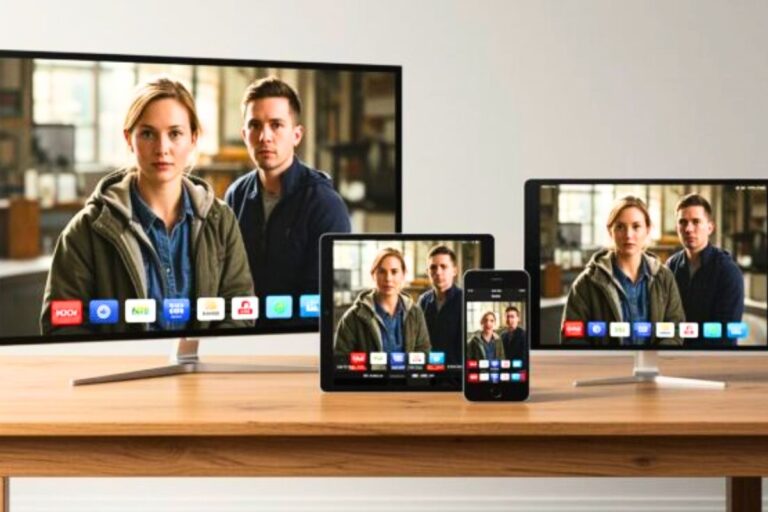
A streaming app is a built-in TV “channel” you install from your TV’s app store. Instead of using a cable box or antenna signal, the app plays video over your home internet (Wi-Fi).
Most modern Smart TVs include an app store where you can install popular apps in a few minutes. For example, on Sony TVs, apps are usually through the official Google Play Store for TVs.
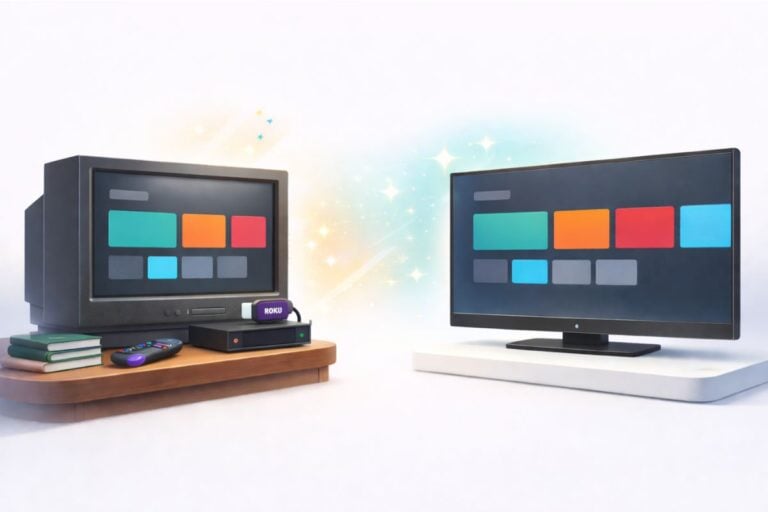
Good to know: Not every TV supports every app forever. If your TV is older, slow, or missing the app you want, the simplest fix is adding a small streaming device (like a Roku Stick or Fire TV Stick) which brings its own app store and updates.
Before You Start: Connect Your Smart TV to Wi-Fi
Streaming apps will not install or play reliably unless your TV is connected to the internet. Before you do anything else, confirm Wi-Fi is working on the TV.
Common Wi-Fi Error Messages
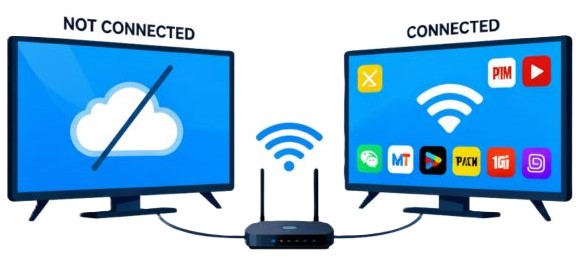
If the TV is offline, you may see messages like:
- “Not Connected”
- “No Internet Connection”
- “Unable to Join Network”
- “Check Your Internet Connection”
- “Network Error: Please Try Again Later”
- “Cannot Load App. No Internet Connection.”
If you see any of these, reconnect the TV to Wi-Fi first—then install apps.
How to Connect Any Smart TV to Wi-Fi (Works for Most Brands)
The menu names vary a little, but the steps are basically the same:
- Press Home or Menu on your TV remote.
- Open Settings (often a gear icon).
- Go to Network or Connections.
- Select Wi-Fi / Wireless / Set Up Connection.
- Choose your home network from the list.
- Enter your Wi-Fi password using the on-screen keyboard.
- Wait for the “Connected” confirmation.
- Test it by opening any built-in app (YouTube is often preinstalled).
If it won’t connect, restart your router and the TV, then try again.
Brand Notes (Only When Your TV Looks Different)
If you’re stuck finding the app store on your TV, use the quick brand guide below:
Roku TVs
Go to: Settings → Network → Check connection (it tests Wi-Fi and internet together).
Fire TVs (built-in Fire TV Edition sets)
After selecting your network, it may ask “Join Wi-Fi network?” Choose OK to finish.
Older Vizio TVs (VIA / VIA Plus models)
Some older models don’t reconnect cleanly after router changes. If needed: Menu → Network → Manual Setup and re-enter the password.
Apple TV (not a Smart TV app store)
Apple TV is a separate streaming box with its own Wi-Fi connection. On the Apple TV box: Settings → Network → Wi-Fi.
If Your TV Still Won’t Connect
Try these in order:
- Restart your router/modem (unplug 30 seconds, plug back in).
- Restart the TV (power off, wait 10 seconds, power back on).
- Move the router closer, or remove obstacles if possible.
- Try the 2.4 GHz network (often steadier at distance than 5 GHz).
- Check for a software update on the TV (updates can fix Wi-Fi bugs).
- Re-enter the Wi-Fi password carefully (one wrong character breaks it).
- Confirm Wi-Fi works by connecting your phone to the same network.
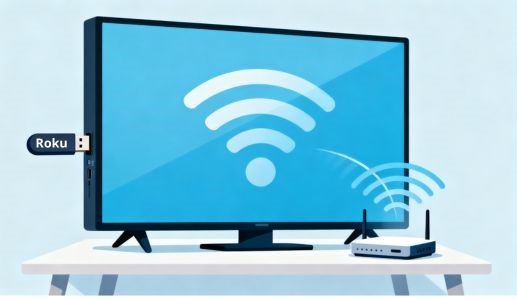
If the TV is simply too old or unreliable on Wi-Fi, adding a Roku Stick or Fire TV Stick often solves both connection and app-store problems in one shot.
How to Install Streaming Apps on Any Smart TV
Most Smart TVs use the same basic process to add apps:
- Press Home on your TV remote.
- Open Apps or the App Store (sometimes called “Store,” “Get More Apps,” or “Add Apps”).
- Choose Search (magnifying glass icon).
- Type the app name (example: Tubi, Pluto TV, YouTube).
- Select the official app result.
- Choose Install / Download / Add.
- When it finishes, choose Open—or return to Home and find the new app tile.
Where to Find the App Store on Popular Smart TVs
Samsung Smart TVs
Home → Apps → Search (magnifying glass)
LG Smart TVs (webOS)
Home → LG Content Store
Sony Smart TVs (Google TV)
Home → Apps → Google Play Store
Roku TVs
Home → Streaming Channels
Amazon Fire TV Edition TVs
Home → Find → Search or Appstore
Vizio Smart TVs
Home → Apps or press the V button (SmartCast models)
TCL TVs
• Roku TV models: Home → Streaming Channels
• Google TV models: Home → Apps → Google Play Store
Hisense TVs
• Roku TV: Home → Streaming Channels
• Google TV: Home → Apps → Google Play Store
What If Your TV Is Older or Missing Apps?
If your TV is slow, missing an app store, or stops updating apps, it may be at the end of its “smart” lifespan. You still have three straightforward options.
Option 1: Add a Roku Stick or Fire TV Stick (best overall fix)
A streaming stick plugs into your TV’s HDMI port and becomes the “smart” part of the setup. It brings a modern app store, faster performance than many older Smart TVs, and more consistent app availability and updates.
If you’re not sure which one is easier day-to-day, this quick comparison breaks down the practical differences (remote, menus, and setup).
Option 2: Use an HDMI-to-AV Converter (for very old TVs)
If your TV only has the older red/white/yellow inputs, you can still use a streaming stick—just add an HDMI-to-AV converter.
How it connects:
- Roku/Fire Stick → HDMI side of the converter
- Converter → red/white/yellow cables → TV
Option 3: Cast From Your Phone (works for many apps and websites)
Casting lets you play video on your phone and send it to the TV.
Before casting will work, a few simple things need to be in place:
- Your phone and TV (or streaming stick) are on the same Wi-Fi network
- You see a Cast icon in the app/video player

Then:
- Start playing the video on your phone.
- Tap the Cast icon.
- Choose your TV or streaming device.
If you’ve never used casting before, here’s the simplest step-by-step walkthrough (with the common “why isn’t it showing up?” fixes).
Troubleshooting Streaming Apps on a Smart TV
If apps freeze, don’t open, or buffer, these fixes apply to almost any brand.
Apps Won’t Open or Keep Crashing
Try in this order:
- Close the app and reopen it.
- Restart the TV (power off, wait 10 seconds, power on).
- Confirm Wi-Fi is still connected.
- Check for a TV software update.
- Update the app (if your TV allows app updates).
- Uninstall the app, reinstall it, and try again.
Video Buffers or Freezes
This is usually a Wi-Fi strength or congestion issue:
- Move the router closer (or reduce obstacles).
- Pause other heavy internet use in the house temporarily.
- Try the 2.4 GHz Wi-Fi network if the TV is far from the router.
- Restart the router (unplug 30 seconds, plug back in).
???? If you’re using the Pluto TV app and it buffers or stops working, use this guide to fix Pluto TV when it keeps freezing.
Casting Does Not Work
- Confirm phone and TV are on the same Wi-Fi network.
- Close and reopen the app on your phone.
- Restart the TV/streaming stick.
- Try casting a different video to confirm the connection works.
Apps Disappear or Stop Updating on an Older TV
If apps vanish, fail to install, or stop updating, the TV is likely no longer supported.
Practical fix: Use a Roku Stick or Fire TV Stick for reliable apps and updates.
Frequently Asked Questions
Do I need a streaming device if I already have a smart TV?
Not always. If your TV runs the apps you want smoothly, you’re fine. If it’s slow, missing apps, or no longer updating, a streaming stick is the quickest upgrade.
Why can’t I find certain apps on my Smart TV?
App availability depends on the TV’s operating system and how long the manufacturer supports it. Older models often lose apps over time.
Can I use a streaming stick on an older TV?
Yes—if the TV has HDMI, you’re set. If it only has red/white/yellow inputs, you can still do it with an HDMI-to-AV converter.
What if my home Wi-Fi is slow?
Try the basics first: move the router, use 2.4 GHz at distance, reduce other streaming/downloads, and restart the router. If you have the option, a wired Ethernet connection is the most stable.
Wrap-Up
Installing streaming apps on a Smart TV comes down to three steps: connect to Wi-Fi, open the app store, and install the app. If your TV is older or missing apps, don’t fight it—add a Roku or Fire TV Stick (or use a converter for very old TVs). Once the hardware and Wi-Fi are stable, streaming becomes simple and consistent.