How to Set Up a Fire TV Stick (Beginner Guide)

If your Fire TV Stick is sitting by the TV and you’re thinking, “Now what?”, this guide is for you.
I’ll walk you through every step like I’m sitting on the couch with you, from plugging it in to watching your first show.
What You Need Before You Start
Have these things ready:
- A Fire TV Stick and its remote
- A TV with at least one open HDMI port
- Your home Wi‑Fi name and password
- A free Amazon account (email and password)
You do not need cable, a smart TV, or Amazon Prime.
Good to know: A Fire TV Stick works on most older TVs as long as they have an HDMI port.
Fire TV Stick Setup: The 6 Basic Steps
Step 1: Plug In Your Fire TV Stick

- Find an open HDMI port on the back or side of your TV (HDMI 1, HDMI 2, etc.).
- Plug the Fire TV Stick into that HDMI port. If the TV is close to the wall, use the short HDMI extender that came in the box.
- Plug the small end of the USB power cable into the Fire TV Stick.
- Plug the big end of the USB power cable into the power adapter (the little wall plug).
- Plug the power adapter into a wall outlet, not into the TV’s USB port.
Using the wall outlet gives the stick enough power and helps avoid freezing and black screens.
Step 2: Turn On the TV and Pick the Right HDMI
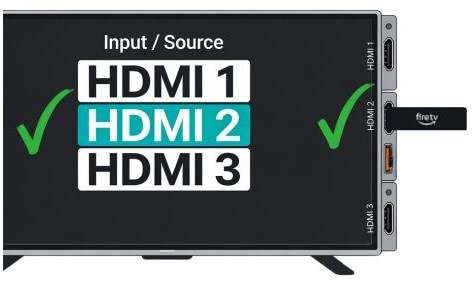
- Turn on your TV with your regular TV remote (not the Fire remote yet).
- Press the button that says Input, Source, or sometimes Menu or Home.
- On the screen, you’ll see choices like HDMI 1, HDMI 2, AV, TV.
- Use the arrow buttons to move to the HDMI number where you plugged in the Fire Stick, then press OK or Enter.
If you see a black screen or “No Signal,” you’re probably on the wrong HDMI. Try each HDMI option until you see the Fire TV setup screen.
Step 3: Get the Fire TV Remote Working
- Put the batteries into the Fire TV remote.
- Point the remote at the TV. Most of the time it will connect by itself.
- If nothing happens, press and hold the Home button on the remote for about 10 seconds.

If the remote still doesn’t work:
- Try fresh batteries.
- Move closer to the TV.
- Hold the Home button again for 10 seconds.
You should see a message on the TV when the remote is paired.Step 4: Connect to Your Wi‑Fi
You should now see the Fire TV setup screens.
Step 4: Connect to Your Wi‑Fi
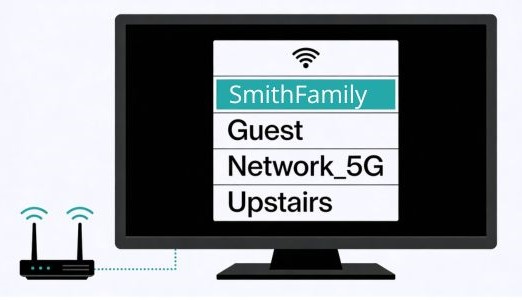
- When you see the Wi‑Fi list, use the arrows on the remote to pick your home network.
- Press the center button to select it.
- Use the on‑screen keyboard to enter your Wi‑Fi password.
- Move to “Connect” and press the center button.
If your Wi‑Fi name does not show:
- Wait a few seconds and refresh the list.
- Make sure your router is on.
- If possible, move the Fire Stick (or TV) a little closer to the router.
Password tip:
- Check capital letters. “Password123” is not the same as “password123.”
- Watch out for extra spaces if you copied it from a phone or computer.
If you never changed the password, look on the sticker on your router or call your internet company.
A stable Wi-Fi connection is required for setup to finish.
Step 5: Sign In to Your Amazon Account
Next, the Fire TV Stick will ask you to sign in.
You can:
- Type your email and password in on the TV screen with the remote, or
- Sometimes scan a QR code with your phone and finish sign‑in there.
You only need a free Amazon account. You do not need Amazon Prime to finish setup or watch free apps.
Once you sign in, the Fire TV Stick may update itself and restart. Let it finish; this can take a few minutes.
Step 6: Add Free Apps for Classic TV
When setup ends, you’ll land on the Fire TV home screen.
To add free streaming apps:
- Look for the Search icon (a little magnifying glass).
- Use the remote to type the name of an app like “Tubi” or “Pluto TV.”
- Choose the app and select Download or Get.
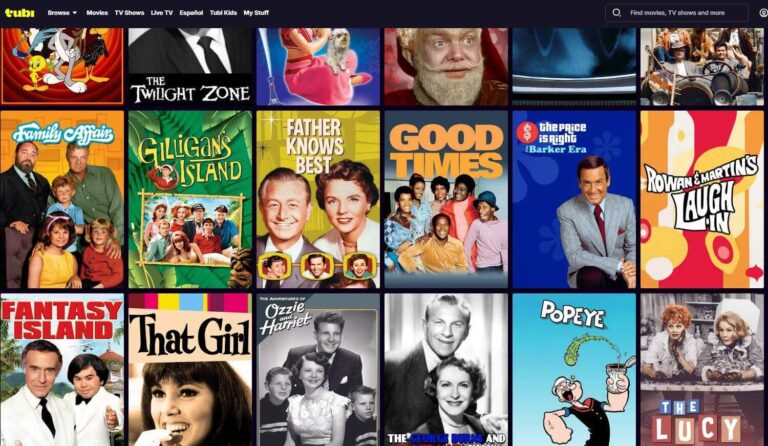
If you want easy choices for free classic TV, you can follow my guide to where to watch old TV shows for free, which lists apps like Tubi, Pluto TV, and more, all in one place.
Casting From Your Phone to the Fire TV Stick (Optional)

Some people prefer to browse shows on their phone and send them to the TV. You don’t have to do this to enjoy your Fire Stick, but some people like it.
Casting means you pick the show or movie on your phone and send it to the TV. Our simple walkthrough on how to cast from your phone to your TV will fill you in on how to do it.
- On Android phones, you may see a cast icon (a little rectangle with waves in the corner) in many apps.
- On iPhones, some apps use AirPlay or have their own cast button.
Not every app supports casting, so if you don’t see a cast icon, nothing is broken.
Questions about casting? Learn when casting works, when it doesn’t, and what to try if nothing shows up on the TV.
You don’t need casting to enjoy your Fire TV Stick — it’s just an extra option.
Fire Stick Not Working? Quick Fixes
If the screen is blank, frozen, or the remote won’t listen, try this checklist in order:
- Restart the Fire Stick
Unplug the power from the wall for 30 seconds, then plug it back in. - Re‑pair the remote
Hold the Home button for about 10 seconds until you see a pairing message. - Check Wi‑Fi
On the Fire home screen, go to Settings → Network and make sure you’re connected to your network. - Check power
Make sure the Fire Stick is plugged into the wall adapter, not into the TV’s USB port. - Check HDMI
Make sure the TV is set to the HDMI number where the Fire Stick is plugged in.
If your Fire TV remote does not respond during setup, you may need to reset the Firestick remote and pair it again.
Common Mistakes to Avoid
- TV is on the wrong HDMI input.
- Remote batteries are weak or put in backward.
- Fire Stick is powered from the TV USB instead of the wall.
- Hotel or shared building Wi‑Fi needs a special sign‑in screen that can block setup.
What To Do After Setup
Once your Fire TV Stick is working, you can:
Open a free app like Tubi or Pluto TV to start watching classic TV.
If you’re still not sure Fire Stick is your long‑term device, read my Roku vs Firestick guide to see which one is easier for classic TV.
You can always come back later to add apps, try casting, or adjust sound settings. There’s no need to do everything at once.
Frequently Asked Questions
Why won’t my Fire TV Stick turn on during setup?
This is almost always a power issue. Make sure the Fire TV Stick is powered through the wall power adapter, not the TV’s USB port. TV USB ports often don’t supply enough power for setup.
What if my Fire TV Stick screen is blank or says “No Signal”?
The TV is likely set to the wrong HDMI input. Use your TV remote to switch inputs until the Fire TV setup screen appears. The HDMI input on the TV must match the port the Fire TV Stick is plugged into.
Do I need a smart TV for a Fire Stick?
No. You just need a TV with an HDMI port and a wall outlet.
Do I need Amazon Prime to finish Fire TV Stick setup?
No. You only need a free Amazon account to complete setup. Amazon Prime is optional and not required to use the Fire TV Stick or install free apps.
Can I use this on an older TV?
Yes, if it has an HDMI port. If it doesn’t, you may need an HDMI adapter. We explain all the steps in our guide to streaming on a non-smart TV.
Wrap-Up
That’s it. Your Fire TV Stick is set up and ready to use.
If something didn’t work the first time, keep this in mind: Most setup issues come down to power, the HDMI input, or the remote — all easy fixes you now know how to handle.
From here, you can:
- Start watching free TV
- Compare devices if you’re still deciding
Your Fire TV Stick will work just fine with the basics, and you can always come back to add apps or change settings later.
And if TV voices ever sound quiet or muddy after setup, there are simple settings that can fix that — no new gear required.
If you get stuck again, come back to this guide and take it one step at a time.